
Regain control with Safe Mode
When WordPress crashes — white screen, HTTP 500, or wp-admin won’t load — SiteSkite Safe Mode (Site Recovery Mode) restores a controlled emergency access layer so you can disable plugins, roll back updates, or restore backups from the portal without FTP or hosting login.
7-day trial · No credit card required
When to use Safe Mode
Enable Safe Mode when WordPress is partially broken but you still need to fix the site from SiteSkite — especially on production client sites.
White screen of death
Fatal PHP errors or plugin conflicts blank the front end and lock you out of normal wp-admin access.
HTTP 500 errors
Internal server errors after an update, bad deploy, or incompatible code change.
Plugin or theme breaks
A recent plugin or theme update triggers fatals — Safe Mode restores access so you can roll back or disable the culprit.
SiteSkite connection lost
When REST API endpoints fail or SiteSkite loses connection because WordPress is unreachable.
What Safe Mode enables
Recovery Mode acts as a controlled bridge that keeps communication with the site alive even when WordPress is partially broken.
Disable problematic plugins
Safely turn off plugins causing fatals without editing files on the server.
Roll back updates
Revert plugin or theme updates that broke the site — directly from the SiteSkite portal.
Restore from backup
Launch a backup restore when rollback or plugin disable is not enough to recover stability.
Reconnect & investigate
Reconnect the site to SiteSkite, fix configuration issues, and investigate fatal errors with Pretty Logs.
What Safe Mode does not do
Safe Mode is a recovery tool — not an automatic repair system. It restores minimal access so you can perform fixes.
- Does not automatically restore backups
- Does not permanently modify your website configuration
- Does not fix hosting server outages
- Does not bypass WordPress security permissions
Benefits of Safe Mode
Built for developers, agencies, and businesses managing production WordPress websites.
- Faster incident resolution — fix failures without waiting for hosting support
- No FTP or hosting panel access required
- Reduced downtime — restore access before visitors are heavily affected
- Safe recovery environment — fix one issue at a time without risking further damage
- Ideal for agencies managing multiple production sites during incidents
- Temporary and controlled — disable Safe Mode once the site is stable again
Common recovery scenarios
Where Safe Mode saves the day during WordPress incidents.
Bad plugin update
Enable Safe Mode, disable or roll back the plugin, confirm the site loads, then disable Safe Mode.
Theme fatal error
Restore access after a theme update causes PHP fatals — roll back the theme from the portal.
Client production emergency
Agencies recover a down client site from SiteSkite without requesting hosting credentials.
PHP syntax error
Regain dashboard access when custom code or a snippet introduces a syntax error.
Backup restore path
When incremental fixes fail, restore from backup history while Safe Mode keeps the connection alive.
Post-incident workflow
Pair with WP Canvas notes, Pretty Logs, and Sandbox testing to prevent repeat incidents.
How to enable Safe Mode
Activate the recovery layer from the SiteSkite portal when a linked site becomes inaccessible.
Log in to SiteSkite
Open the SiteSkite portal and go to your linked sites.
Select the linked site
Choose the WordPress site that is broken or unreachable.
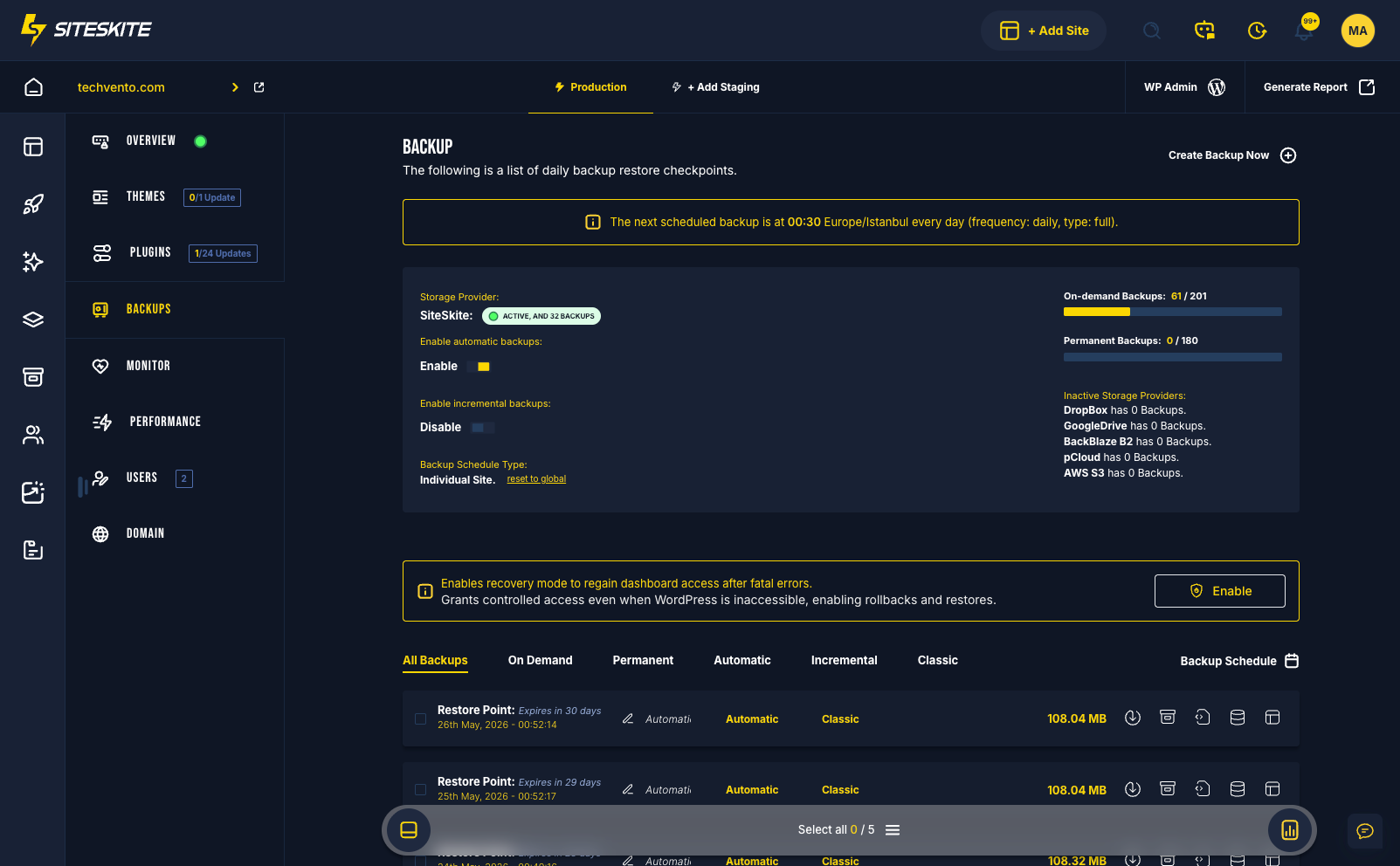
Open Backups
Navigate to the Backups area for that site.
Enable Safe Mode
Locate the Site Recovery Mode section and click Enable.
Perform recovery actions
Disable plugins, roll back, or restore — then disable Safe Mode when the site is stable.
How Safe Mode works
A lightweight recovery layer that minimizes downtime during emergencies.
Site unreachable
SiteSkite detects the site is broken or communication has failed.
You enable Safe Mode
Activate Recovery Mode from the portal Backups section.
Recovery layer activates
SiteSkite enables a controlled bridge to the WordPress installation.
Access restored
WordPress access is temporarily restored so recovery actions can begin.
Return to normal
After fixes, disable Safe Mode and normal site behavior resumes.
Security & best practices
Safe Mode is designed with safety in mind — temporary access for authorized recovery actions only.
Security and safety
Recovery sessions are controlled and do not bypass WordPress security roles.
- Access is temporary and controlled
- Only authorized SiteSkite recovery actions are allowed
- Recovery sessions can be logged for auditing
- Normal site behavior resumes once recovery is complete
Best practices
- Always keep recent backups available before major changes
- Enable Safe Mode immediately after a fatal error occurs
- Fix one issue at a time during recovery
- Disable Safe Mode once the site becomes stable
- Test major updates in Sandbox environments when possible
Safe Mode is included in your SiteSkite plan
Pair emergency recovery with automated backups, rollback, Pretty Logs, monitoring, and WP Canvas — one WebOps safety net for every linked WordPress site.
7-day trial · No credit card required