
Own your backup storage with Bring Your Own Cloud Storage
Bring Your Own Cloud Storage (BYOCS) lets you connect your preferred cloud provider to SiteSkite and store all website backups securely in your own account — full ownership, flexible limits, and compliance-friendly archiving.
7-day trial · No credit card required
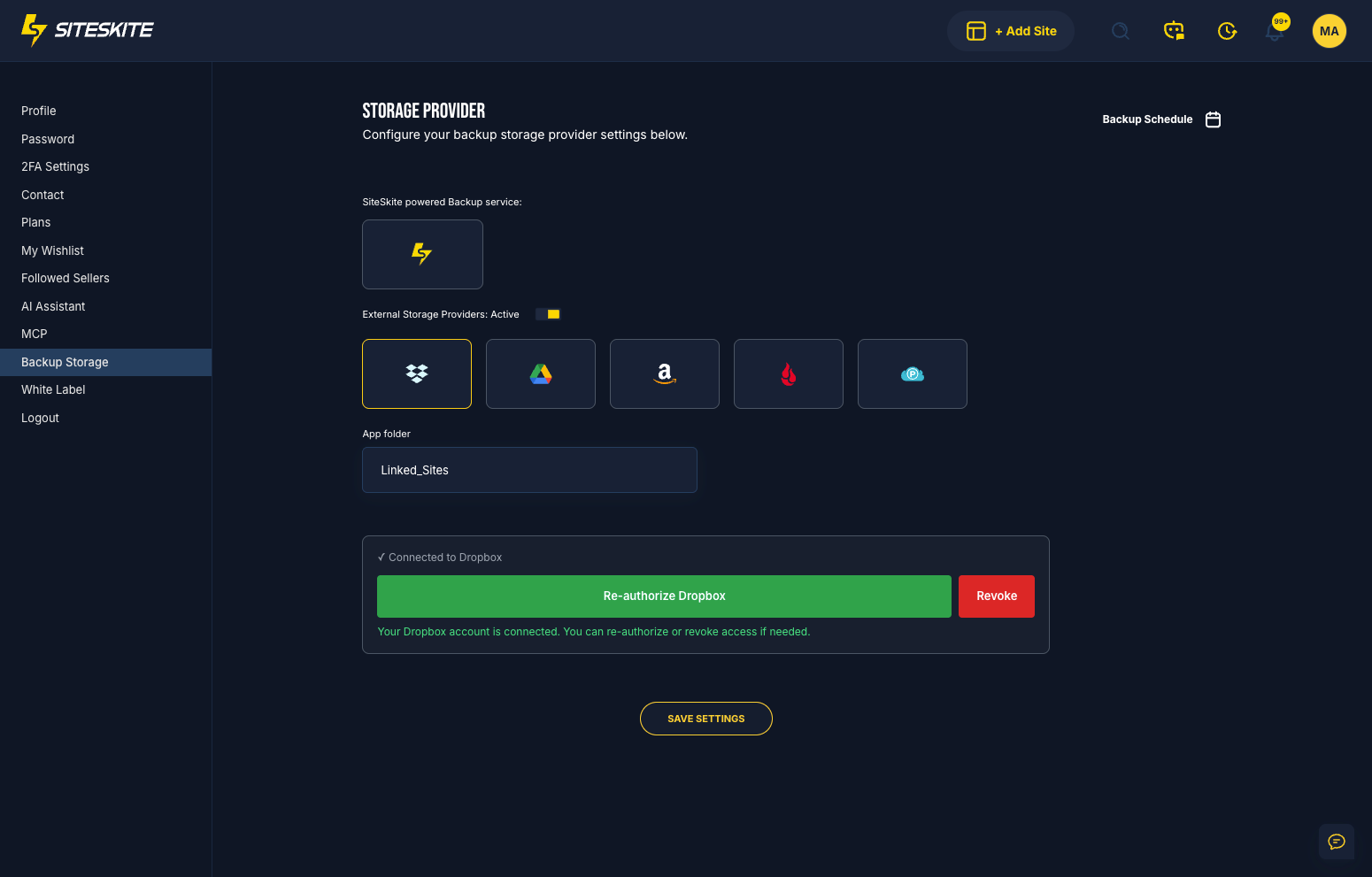
Why use Bring Your Own Cloud Storage
Instead of relying only on SiteSkite internal storage, integrate Google Drive, Dropbox, pCloud, Backblaze B2, or Amazon S3 — and keep backup files under your control.
Full control over backup files
Your backups stay in your cloud account — not on external servers you do not manage directly.
Save storage costs
Store large or long-term backups on cost-effective platforms like Backblaze B2 or S3 Glacier.
Security & compliance
Ideal for agencies working under GDPR, HIPAA, or enterprise-grade data policies.
Unlimited scalability
Your storage grows as your cloud plan grows — no artificial caps tied to a single vendor bucket.
Perfect for multiple sites
Centralize backups for hundreds of websites into one cloud bucket or folder structure.
How BYOCS works
Once a cloud provider is connected, SiteSkite writes backups to your storage and keeps full restore options in the portal.
Direct cloud upload
SiteSkite safely stores all generated backups directly into your selected cloud folder or bucket.
Portal visibility
Backups appear inside your SiteSkite portal with full restore options — even though files live in your account.
All backup types supported
Classic, incremental, manual, automatic daily, permanent backups, and on-demand restore points — all routed to your cloud.
Instant restore
Restore directly to your website from the SiteSkite interface without manual downloads or FTP.
Backup types stored on your cloud
Every backup uploaded to your cloud remains accessible inside SiteSkite with restore functionality.
- Classic full backups
- Incremental backups
- Manual backups
- Automatic daily backups
- Permanent backups
- On-demand restore points
- View, download, restore, clone to staging — all from SiteSkite
Supported providers & credentials
Setup steps vary by provider — connect from Storage Integrations in SiteSkite and follow the provider-specific guide.
Google Drive
Service account credentials — Folder ID, Project ID, Private Key ID, Private Key, Service Email, and Client ID. Best for high-security, multi-website backup management.
Google Drive setup guide →Dropbox
OAuth2 — App Key, App Secret, and Authorization Code generated via login flow.
Dropbox setup guide →pCloud
Client ID, Client Secret, Folder Name, Personal Access Token, and Refresh Token (generated after first connection).
pCloud setup guide →Backblaze B2
Key ID, Application Key, Bucket Name, and optional Bucket Region — ultra-low-cost long-term backup storage for agencies.
Backblaze B2 setup guide →Amazon S3
AWS IAM credentials — Access Key, Secret Key, Bucket Name, and Region.
Amazon S3 setup guide →Using your cloud for restores
Even though files live in your cloud account, SiteSkite keeps WebOps actions seamless.
View available backups
Browse backup history in the portal — dates, types, and restore points synced from your cloud storage.
Download backups
Pull backup archives when you need offline copies or external compliance archives.
Restore to website
One-click restore directly to linked WordPress sites — files and database rebuilt automatically.
Create restore points
Capture on-demand restore points that upload to your connected cloud destination.
Clone to staging
Use cloud-stored backups to clone sites into sandbox or staging environments.
Migrate between hosts
Restore from your cloud backup to a destination server with Migrate to Other Host workflows.
How to enable BYOCS
Connect external storage from Storage Integrations — workflow is consistent across providers.
Open Storage Integrations
Go to Storage Integrations in SiteSkite from your account or site backup settings.
Enable external storage
Toggle the external storage provider button for the cloud service you want to use.
Select provider
Choose Google Drive, Dropbox, pCloud, Backblaze B2, or Amazon S3.
Enter credentials
Add OAuth tokens or access keys required by your provider — follow the provider setup guide if needed.
Save schedule
Press save — new and scheduled backups upload to your cloud automatically.
Best practices
Organize cloud backups for long-term agency portfolios and cost-efficient retention.
Organization & lifecycle
Structure cloud storage so restores stay fast and costs stay predictable as your portfolio grows.
- Use folders per website to keep backups organized
- Enable lifecycle rules to move old backups to cheaper storage (Glacier, Cold Storage)
- Keep incremental backup ON to save storage vs classic full backups
- Verify credentials and bucket permissions after provider policy changes
Ideal for
- Agencies with GDPR, HIPAA, or client-mandated data residency requirements
- Teams already paying for S3, B2, or Drive — consolidate backup spend in one account
- Large portfolios needing centralized buckets instead of per-site hosting backups
- Long-term archival with provider-native cold storage tiers
Bring Your Own Cloud Storage is included in your SiteSkite plan
Pair BYOCS with automated backups, classic and incremental schedules, Migrate to Other Host, and Sandbox clones — one WebOps layer with backups stored where you choose.
7-day trial · No credit card required