
Move WordPress sites with backup-powered Transfer
Open any linked site’s Transfer tab to import a backup into this site — or transfer this site to another destination. SiteSkite restores from a verified backup: no FTP, no phpMyAdmin exports, no third-party migration plugins.
7-day trial · No credit card required
Why migrate with SiteSkite
Whether you are changing hosts, cloning to staging, or recovering onto clean infrastructure — backups become portable WordPress environments.
Import or transfer
Pull a backup from another connected site into this site — or send this site’s backup to a new destination host, staging URL, or domain.
No manual file handling
Skip FTP uploads, database dumps, and fragile migration plugins. Restore from a SiteSkite backup you already trust.
Live restore progress
Watch download, database, and files stages while Import or Transfer runs — then get notified when the destination is ready.
One dashboard workflow
Source site, destination connect, backup picker, and restore progress all live in SiteSkite — not across five tools.
Two Transfer modes
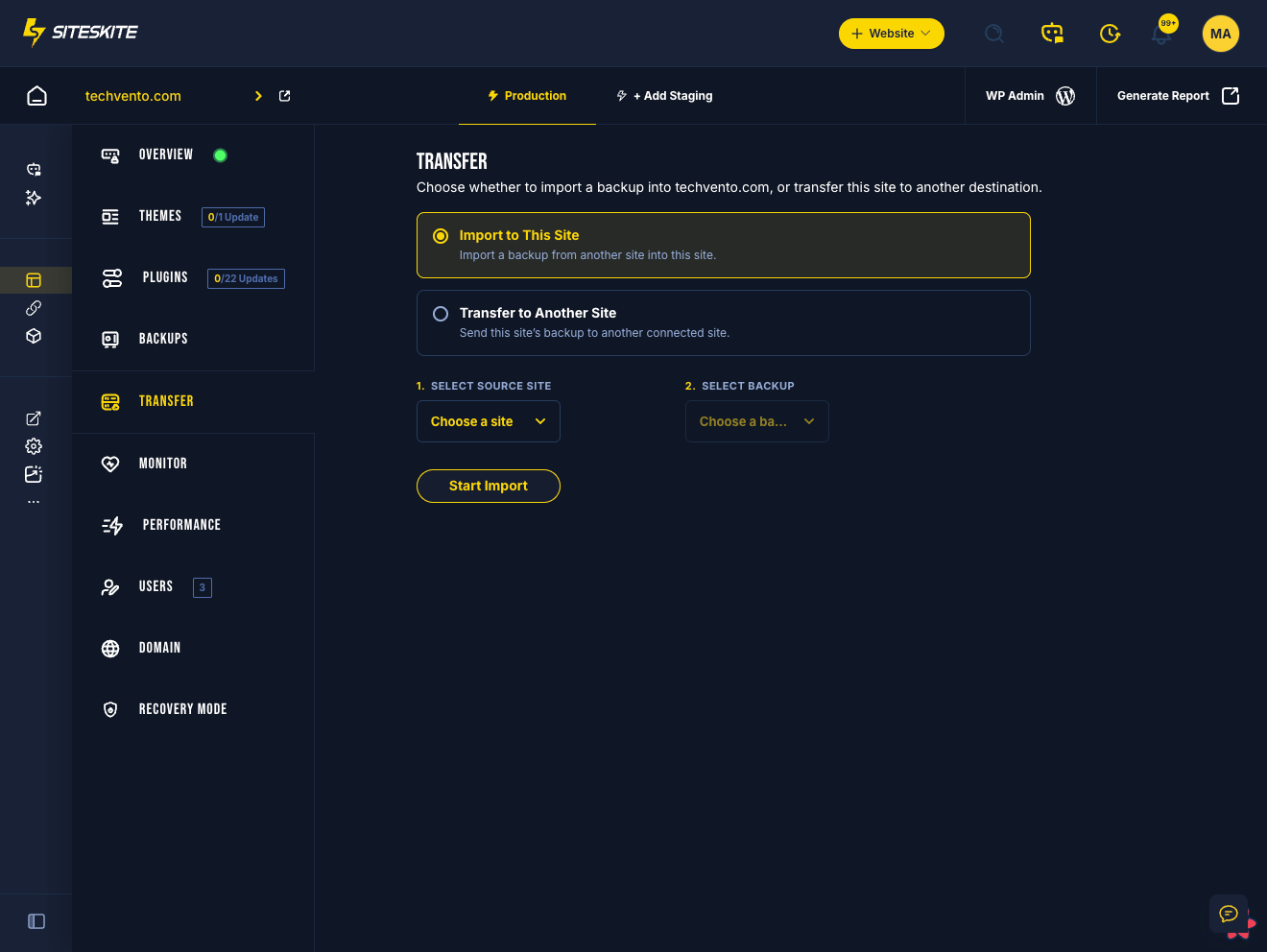
The Transfer tab asks one clear question: bring a backup in, or send this site out.
Import to This Site
Choose a source site and backup, then restore into the site you have open. Ideal for refreshing staging from production or rebuilding a connected destination from another portfolio site.
Transfer to Another Site
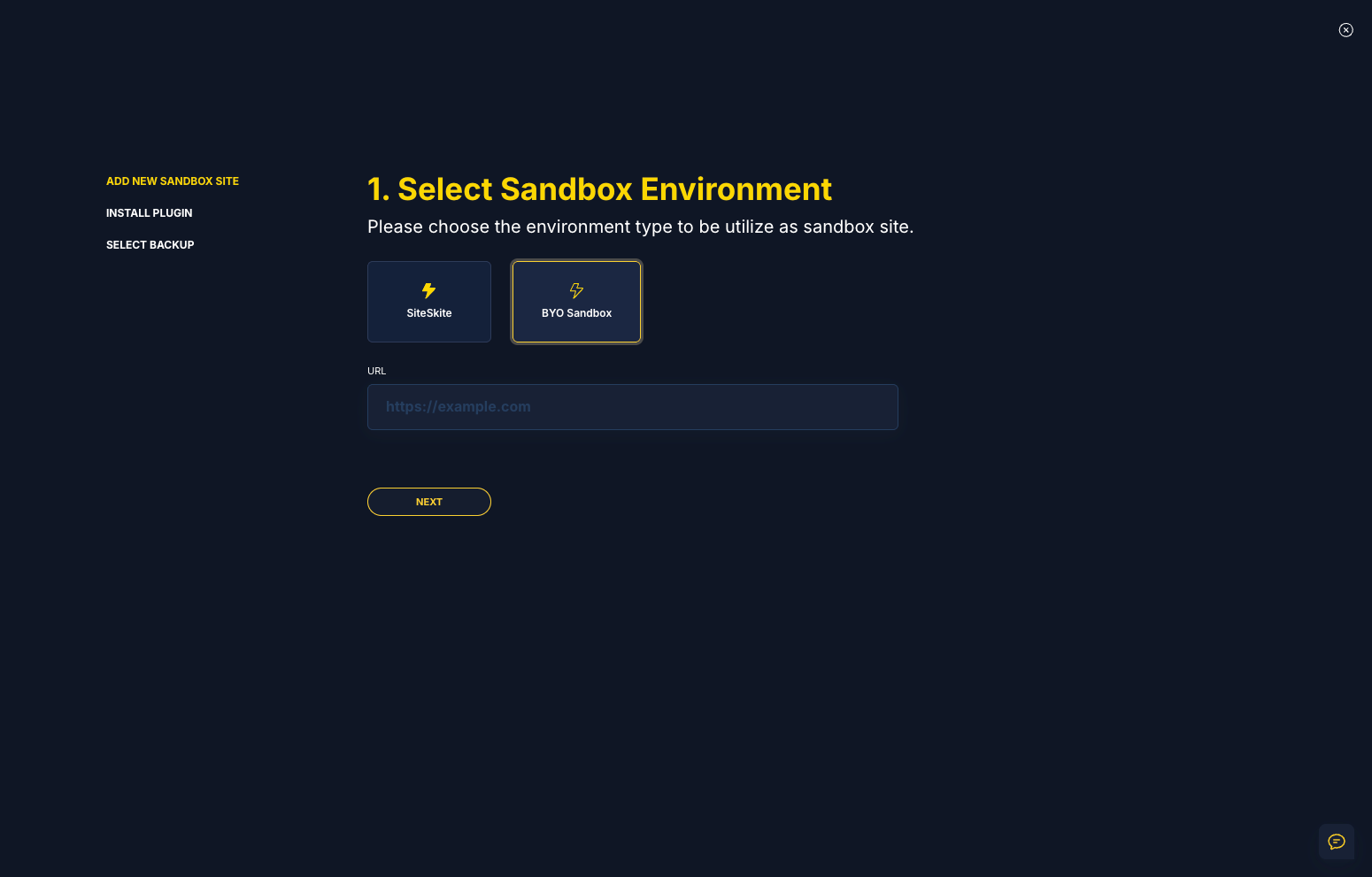
Send this site’s backup to another destination. Enter the destination URL, install and connect the SiteSkite plugin, select a backup, and restore onto the new host.
Import to this site — or transfer to another destination
From any linked site, open Transfer and choose Import to This Site or Transfer to Another Site. Import pulls a backup from another connected site into the current site. Transfer opens the destination wizard so you can connect a new host and restore this site’s backup there.
Source site and backup pickers are searchable, and Start Import / Start Transfer show live progress while the restore runs.
Connect the new host, then restore the backup
For Transfer to Another Site, enter the destination URL, install and activate the SiteSkite plugin, and connect with your API key. When the destination is linked, select the backup and start restoring.
The same backup-powered path works for hosting moves, staging servers, and rebuilding onto clean infrastructure after a disaster.
What Transfer includes
Built for agencies and operators who move WordPress for hosting changes, staging, and recovery — not one-off plugin installs.
Backup restore points
Select dated backups from connected sites — classic full backups and master incremental restore points.
Destination host wizard
Connect any WordPress URL: install SiteSkite on the destination, paste your API key, then choose the backup to restore.
Full WordPress replica
Depending on backup type: core, themes, plugins, uploads, database, settings, users, and content land on the destination.
Progress you can see
Restore progress stays visible on the Transfer tab and in the migrate wizard while SiteSkite downloads and restores files and database.
Cross-site restore
Import between linked sites in your portfolio, or transfer out to a freshly connected destination host.
Validate before DNS
Test the migrated site on the destination URL first — then update DNS, SSL, permalinks, and caching when you are ready to go live.
What gets migrated
SiteSkite recreates the WordPress environment from the backup restore point you choose.
- WordPress core files
- Themes and plugins
- Uploads and media library
- Database — posts, pages, users, and WooCommerce data
- Site settings and configurations
- Move to another hosting provider, staging URL, or new domain
- Validate on the destination before updating DNS and going live
Common use cases
Where teams use Transfer during day-to-day WebOps and client work.
Hosting migration
Move client websites between hosting providers without manual exports or downtime-heavy rebuilds.
Refresh a site from another
Import a production backup into staging — or pull a verified restore point into a connected destination site.
Production → Staging
Create a safe testing environment from a production backup on a separate server.
Disaster recovery
Restore onto a clean WordPress install when the original host or site is compromised or lost.
Agency workflows
Clone client websites quickly for development, demos, or handoff to a new hosting stack.
New domain or infrastructure
Rebuild on a new domain or server from a known-good backup restore point.
How Transfer works
Backup → Choose mode → Connect destination if needed → Restore → Validate.
Have a backup ready
Connect the source site to SiteSkite and create at least one valid backup or restore point.
Open the Transfer tab
On a linked site, open Transfer and choose Import to This Site or Transfer to Another Site.
Pick source or destination
For Import, select source site and backup. For Transfer, connect the destination URL with the SiteSkite plugin and API key.
Start restore
Start Import or continue the transfer wizard. Watch live progress while SiteSkite restores files and database.
Validate and go live
Test the migrated site, update DNS if needed, verify SSL, permalinks, and caching — then launch.
Source & destination requirements
Meet these requirements before starting a migration to avoid failed transfers.
Source site
- Site must already be connected to SiteSkite
- At least one valid backup must exist (create one from Backups if needed)
- Available for linked WordPress sites managed in SiteSkite
Destination site
- Fresh or existing WordPress installation
- SiteSkite plugin installed and activated
- Site connected using your SiteSkite API key
- PHP 8.0+ recommended
- Enough disk space for incoming backup files
Best practices & troubleshooting
Migrate confidently — validate before DNS changes and know what to check when something stalls.
Best practices
Treat migration like a deployment — verify, test, then go live.
- Verify backup integrity before starting Import or Transfer
- Test migrated sites on the destination URL before changing DNS
- Use staging destinations whenever possible
- Validate SSL, permalinks, and caching after migration
Troubleshooting tips
- Destination not connecting — check plugin activation, API key, and link status
- No backups listed — create a backup on the source site’s Backups tab first
- Restore stuck — review server resources, firewall or Cloudflare rules, and PHP limits
- Broken layouts — resave permalinks, clear cache or CDN, regenerate page builder CSS
Migrate to Other Host is included in your SiteSkite plan
Pair Transfer with automated backups, Production & Staging, Sandbox clones, and Safe Mode — one WebOps layer for moving and protecting WordPress sites.
7-day trial · No credit card required