
Test safely with Create Sandbox from Backup
Clone a fully functional replica of your WordPress site from any backup restore point — files, database, themes, plugins, and media included. The clone runs in an isolated Sandbox environment so you can inspect, debug, and validate fixes without touching production.
7-day trial · No credit card required
Why clone from backup
Review historical site states, debug issues, and test updates on an exact working replica — while your live site stays stable and uninterrupted.
Safe testing environment
Test plugin updates, theme changes, or new features on a clone before applying them to the live site.
Troubleshooting issues
Investigate bugs or fatal errors using a replica of the affected site state — not guesswork on production.
Review historical versions
Launch an earlier backup to see how the website looked or behaved at a specific point in time.
Agency workflow
Reproduce client issues or demonstrate fixes without interrupting the live website or requesting hosting access.
What the clone includes
SiteSkite recreates the entire website environment from your selected backup restore point — an exact working replica, not a partial export.
WordPress files
Full file structure restored from the backup snapshot — themes, plugins, uploads, and core files.
Database content
Posts, pages, settings, users, and WooCommerce data — everything stored in the WordPress database at backup time.
Media library
Images, documents, and uploads included in the clone so layouts and content render as they did in the backup.
Isolated sandbox
The clone launches as a separate Sandbox instance — production remains completely untouched and unaffected.
How clone from backup works
SiteSkite takes a selected restore point and launches it as a standalone sandbox site you can manage from the portal.
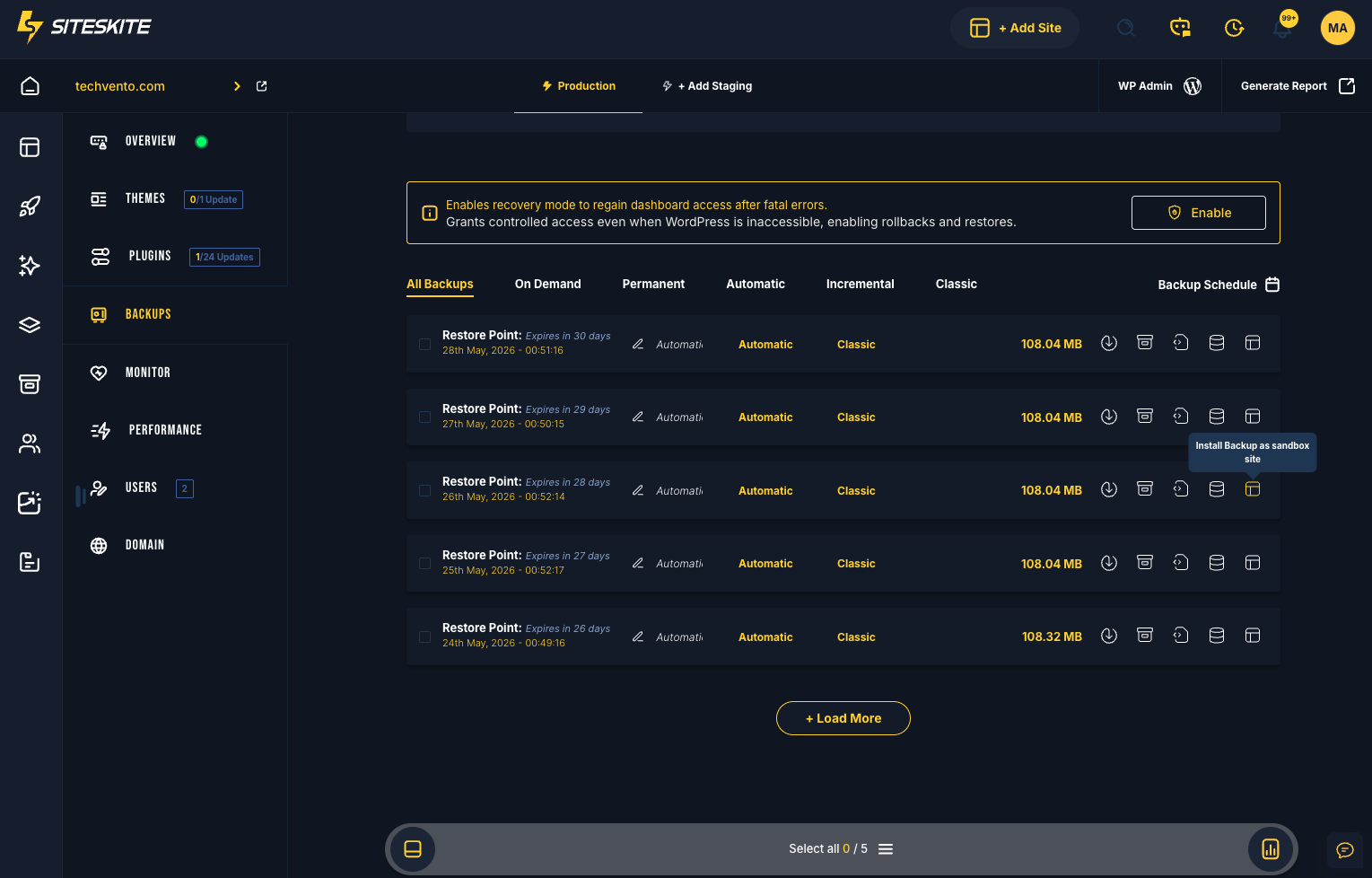
- Pick any backup restore point from Backup History
- One-click Clone — SiteSkite recreates the full site environment
- Clone appears in your Sandbox Sites environment
- Access WordPress dashboard, test updates, and debug errors freely
- Production site stays online and unchanged throughout
- Delete the clone when testing is complete
- Currently supported on Classic backup snapshots
Common use cases
Where teams use backup clones during day-to-day WordPress operations.
Plugin or theme conflict testing
Clone a backup before performing updates to see if conflicts occur — fix on the clone first.
Debugging production errors
Recreate the site environment where the error occurred and investigate with Pretty Logs or Safe Mode.
Pre-deployment validation
Confirm fixes and changes work correctly on the clone before applying them to the live site.
Security incident review
Analyze a compromised or broken version safely in isolation — without exposing production further.
Client demonstrations
Show proposed changes or features on a clone without modifying the real client website.
Validate fixes
Apply and test remediation on the cloned version first — only push to production once confirmed.
How to create a Sandbox from Backup
Clone a site from any backup restore point inside the SiteSkite portal.
Log in to SiteSkite
Open the SiteSkite portal and go to your linked sites.
Select your linked site
Choose the WordPress site whose backup you want to clone.
Open Backups
Navigate to the Backups section and find Backup History.
Click Clone
Locate the restore point you want and click the Clone icon next to the backup entry.
Use your sandbox clone
When complete, the cloned site appears in Sandbox Sites — log in, test, debug, and delete when finished.
Important notes & best practices
Sandbox clones are designed for temporary testing — keep production protected with smart clone habits.
Important notes
Cloned sites run in sandbox environments and do not interact with your production website.
- Production remains completely unaffected during and after cloning
- Clone feature is currently supported on Classic backup snapshots
- Backup availability depends on your retention settings
- Clones can be deleted at any time once testing is complete
Best practices
- Clone the most recent backup when troubleshooting current issues
- Use clones before major plugin or theme updates on production
- Keep your automated backup schedule active for recent restore points
- Delete unused clones to keep your Sandbox environment organized
Create Sandbox from Backup is included in your SiteSkite plan
Pair backup clones with automated backups, Safe Mode, rollback, Pretty Logs, and Sandbox — one WebOps layer for safe WordPress testing and recovery.
7-day trial · No credit card required