
Restore stability with Rollback Updates
When a plugin or theme update breaks your site or conflicts with other code, SiteSkite’s built-in Rollback restores a previous stable version — directly from the portal, without logging into WordPress or touching FTP.
7-day trial · No credit card required
Why rollback matters
Updates are necessary — but not every release plays nicely with your stack. Rollback gives you a fast escape hatch when something goes wrong.
Fix broken updates fast
Revert a plugin or theme to a known-good version when an update causes errors, white screens, or layout breaks.
No WordPress login required
Perform rollbacks from the SiteSkite portal — even when wp-admin is inaccessible or you are managing many client sites.
Pick the exact version
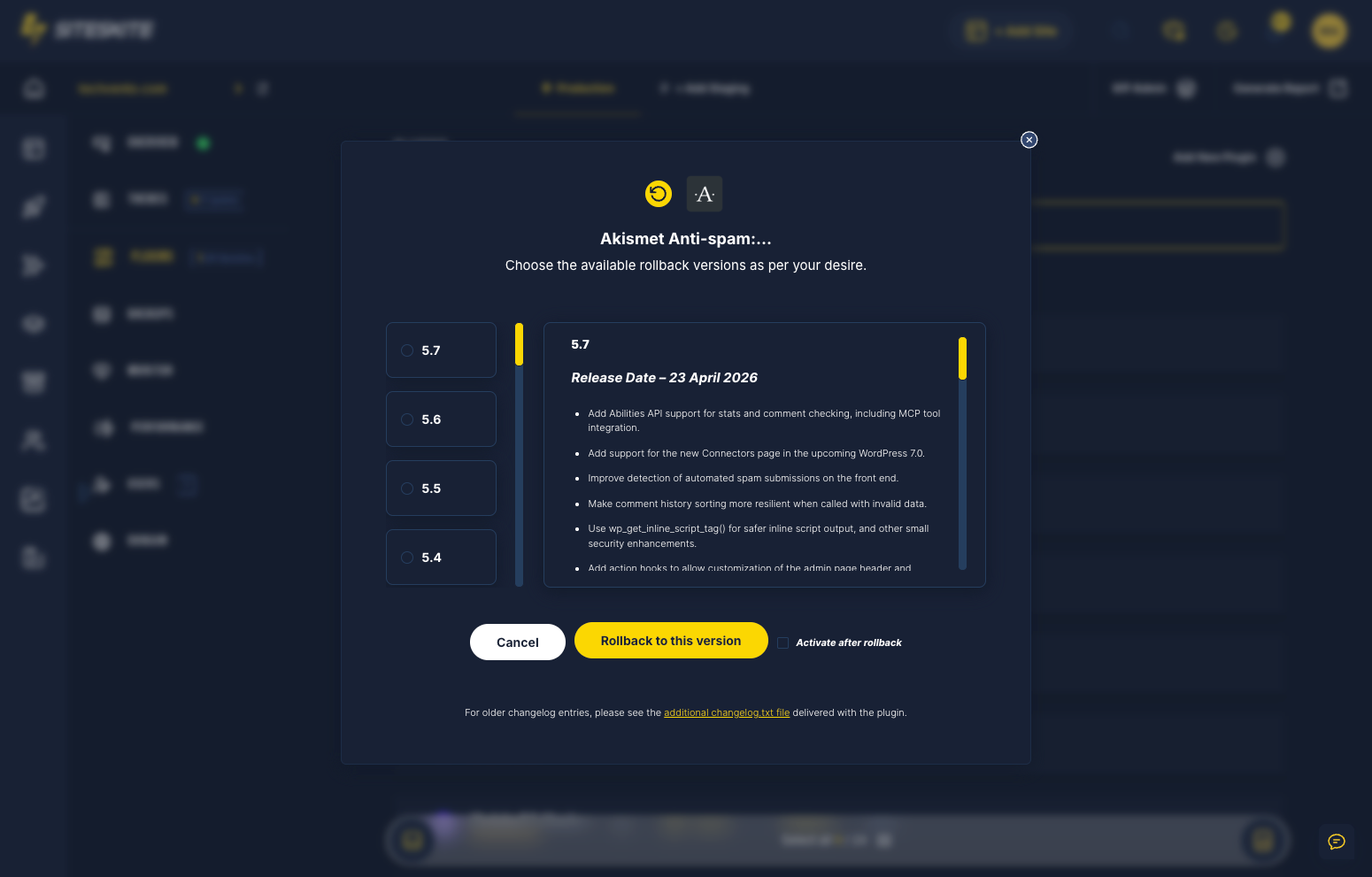
Choose from available previous versions in the rollback viewer — not just the last install, but the version that worked.
Update with confidence
Pair rollback with backups, Safe Mode, and Pretty Logs — update aggressively knowing you can undo quickly.
Plugins and themes
SiteSkite rollback works on both plugins and themes from the same linked-site management area.
Rollback plugins
Open the Plugins tab, click Rollback on any installed plugin, pick a previous version from the list, and confirm — SiteSkite restores that version automatically.
Rollback themes
From the Themes tab, click Rollback on the active or installed theme, select the desired previous version, and confirm — SiteSkite replaces the theme files with your chosen release.
Centralized from the portal
Manage rollbacks alongside bulk updates, installs, and deletes — one WebOps workflow for every linked WordPress site in your account.
Key features
Everything you need to undo a bad update without leaving SiteSkite.
- Built-in rollback for plugins and themes on linked sites
- Version list viewer — choose the release to revert to
- One-click confirm — SiteSkite restores the selected version
- No wp-admin or hosting panel access required
- Works per site from Plugins and Themes tabs
- Pairs with automated backups before risky updates
- Document rollbacks with WP Canvas notes for your team
Common rollback scenarios
Where teams use rollback during day-to-day WordPress maintenance.
Plugin conflict after update
A plugin update triggers a fatal error or conflicts with another extension — roll back to the last stable version immediately.
Theme update breaks layout
A theme release changes templates or styles unexpectedly — revert to the previous theme version while you investigate.
Client site emergency
Restore production quickly from the SiteSkite portal when a client reports downtime right after an update.
After bulk updates
When Smart Engine or bulk update runs touch many sites, rollback the few that fail without manual per-site wp-admin work.
Staging mismatch
Something passed staging but failed in production — roll back production while you compare versions and logs.
Agency maintenance
Support teams undo problematic releases across a client portfolio from one dashboard — no hosting credentials required.
Rollback a plugin
Restore a plugin to a previous version from the SiteSkite portal.
Open the portal
Log in to SiteSkite and go to Websites / Linked Sites.
Select your site
Choose the WordPress site you want to manage.
Open the Plugins tab
Locate the plugin you want to rollback in the installed plugins list.
Click Rollback
Open the rollback viewer and choose the version to revert to from the available list.
Confirm rollback
Click Rollback to this version — SiteSkite automatically restores that plugin release.
Rollback a theme
Replace a theme with a previous version from the Themes tab.
Open the Themes tab
From the selected site, open Themes and find the theme to rollback.
Click Rollback
Open the rollback viewer for the theme you want to revert.
Select a version
Pick the desired previous version from the available releases.
Confirm rollback
Click Rollback to this version — SiteSkite replaces the theme with your chosen release.
Best practices before rollback
Rollback is fast — but a few habits keep your sites and teams aligned.
Before you rollback
Treat rollback as part of a safe maintenance workflow, not a substitute for backups.
- Backup first — run a backup before rolling back a theme or plugin
- Add a note in WP Canvas so your team knows why the rollback was performed
- Test after rollback — visit the site to confirm the issue is resolved
When rollback is the right move
- A specific plugin or theme update caused the issue — not core or database corruption
- You need a previous version quickly and know which release was stable
- wp-admin is unreachable but the SiteSkite connection is still active
- Pair with Pretty Logs or Safe Mode if the root cause needs further investigation
Rollback Updates are included in your SiteSkite plan
Undo bad plugin and theme releases alongside bulk updates, automated backups, Safe Mode, and monitoring — all from one WebOps dashboard.
7-day trial · No credit card required