
Protect every WordPress site with Automated Backups
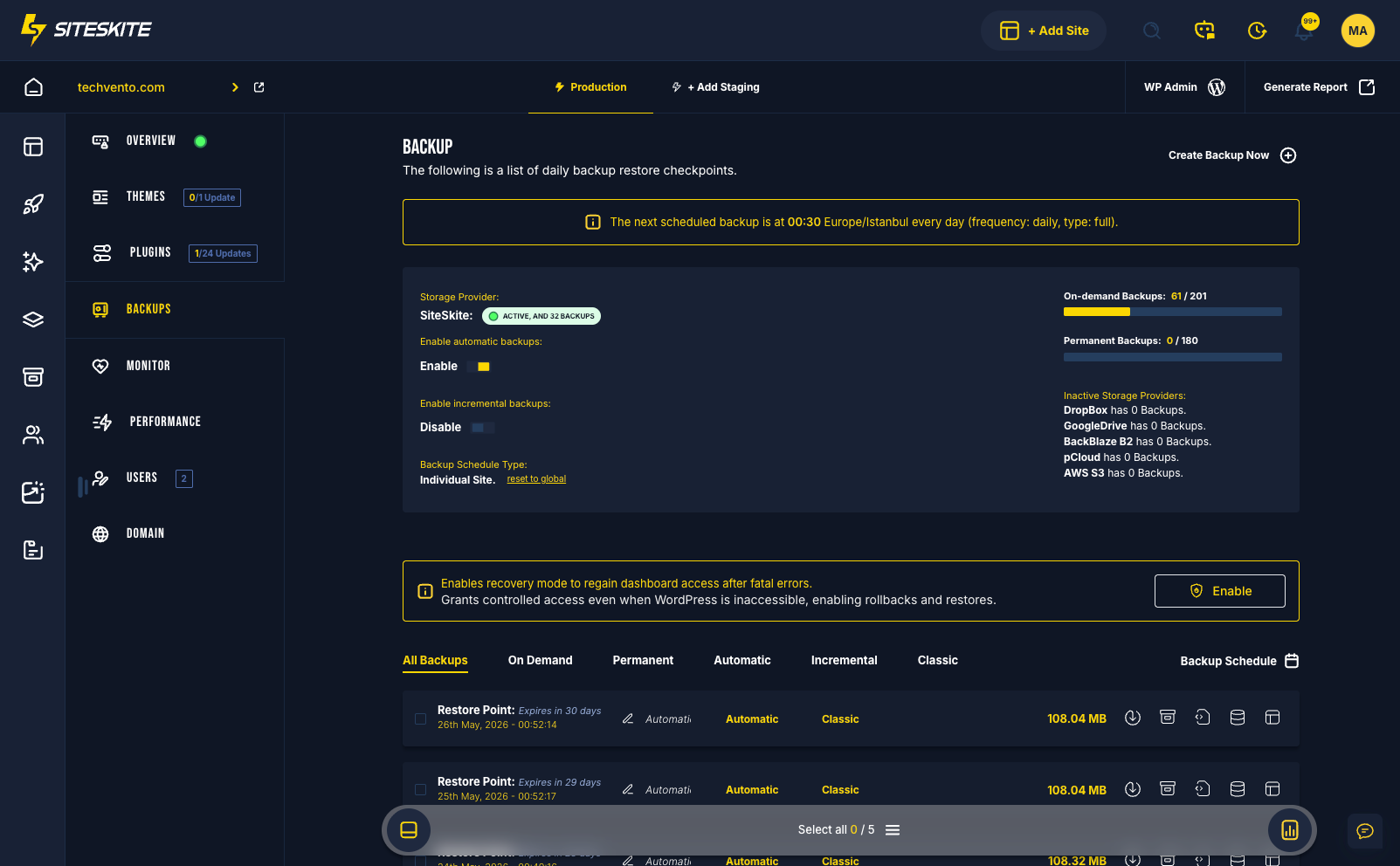
SiteSkite backs up your linked websites on a schedule — daily or custom — without manual action. Choose classic full backups or incremental changes-only backups, send them to your preferred cloud storage, and restore from backup history when something breaks.
7-day trial · No credit card required
Why automated backups matter
Your business and clients stay protected even while you sleep — consistent restore points without chasing hosting panels or manual exports.
Zero manual effort
Once enabled, SiteSkite runs backups on schedule. No cron scripts, no reminder tickets, no forgotten client sites.
Maximum protection
If a site breaks, gets hacked, or a bad update lands, restore instantly from a known-good snapshot in backup history.
Consistent restore points
Daily automated snapshots give you stable rollback targets — ideal for agencies managing many production WordPress sites.
Cloud storage safety
Store backups in SiteSkite-powered storage, Amazon S3, Backblaze B2, Dropbox, Google Drive, or pCloud — your strategy, your provider.
Classic or incremental
Two backup structures — full control over speed, storage use, and restore simplicity. Incremental backups are off by default; toggle on to switch scheduled backups to incremental.
Classic backup (full)
A complete snapshot of your entire WordPress site. Reliable and simple to restore — ideal after major updates, migrations, or redesigns. Larger files and more hosting load than incremental.
Incremental backup
Only files changed since the last backup. Faster, lighter, and storage-efficient — recommended for daily automated schedules and shared or low-resource hosting.
Retention & cleanup
SiteSkite manages old backups based on your plan limits, retention rules, and cloud capacity — older entries are removed automatically when limits are reached.
How automated backups work
Once the schedule is enabled, SiteSkite handles the backup engine end to end.
- Runs backups on your selected schedule — daily by default
- Creates classic full or incremental backups based on your toggle
- Sends completed backups to your chosen storage destination
- Logs each run in Backup History with type, size, and location
- Honors retention settings — only keeps backups allowed by your plan
- One-click restore — files, database, and incremental layers rebuilt automatically
- Download backups when supported for offline archives
Built for real WebOps scenarios
Where scheduled backups save agencies, freelancers, and in-house teams from downtime.
Daily client protection
Incremental daily backups across a portfolio — minimal storage, maximum coverage for managed WordPress sites.
After major updates
Schedule classic full backups before plugin, theme, or core changes — roll back if something breaks.
Migrations & redesigns
Consistent restore points during host moves, staging merges, or large content deployments.
Hack or malware recovery
Restore a clean snapshot when a site is compromised — without rebuilding from scratch on the server.
Client reporting & compliance
Demonstrate backup coverage alongside SiteSkite Reports — transparent maintenance for agency retainers.
Bring your own cloud
Send backups to S3, Backblaze, Dropbox, Google Drive, or pCloud so data stays in your preferred account.
How to enable automated backups
Configure scheduled backups from any linked site in the SiteSkite portal.
Open your website
From Linked Sites, select the site you want to protect and open the Backup tab.
Enable the schedule
Toggle Automated Backup ON to activate daily (or custom) scheduled backups.
Choose backup type
Select incremental (recommended for daily) or classic full backup using the type toggle.
Choose storage
Pick SiteSkite-powered storage, S3, Backblaze B2, Dropbox, Google Drive, or pCloud.
Save changes
Save your configuration — backups run automatically and appear in Backup History.
History, restore & troubleshooting
Review completed backups, restore in one click, and know what to check when something fails.
Backup history & restore
Every completed backup shows date, type, size, storage location, and restore or download actions.
- Open Backup History from the site Backup tab
- Click Restore Backup — SiteSkite replaces files and recovers the database
- Incremental restores combine baseline plus change layers automatically
- Site validation runs after restore completes
Common issues
- Backup failed — check server memory, file permissions, or storage API credentials
- Incremental stopped — ensure the first full baseline completed successfully
- Not running daily — verify cron, plugin connection, and site reachability
- Firewall blocking — some hosts block backup operations until allowlisted
Automated Backups are included in your SiteSkite plan
Pair scheduled backups with Smart Engine, monitoring, Safe Mode, Pretty Logs, and WP Canvas — one WebOps layer for every linked WordPress site.
7-day trial · No credit card required