
Choose the right backup engine with Classic & Incremental Backups
SiteSkite supports two backup structures — classic full snapshots and incremental change-only backups. Pick the speed and storage profile that fits your hosting, schedule, and restore workflow — then switch types with a single toggle on any linked site.
7-day trial · No credit card required
Why backup type matters
The same schedule can behave very differently depending on whether you capture the full site or only what changed since the last run.
Completeness vs efficiency
Classic backups give you a self-contained full snapshot. Incremental backups trade size for speed — ideal when daily automation needs to stay light on shared hosting.
Hosting resources
Low-memory environments (128MB–256MB RAM) struggle with large classic runs. Incremental backups reduce load for recurring daily schedules.
Restore expectations
Classic restores are straightforward — one archive. Incremental restores combine a baseline plus change layers, handled automatically by SiteSkite.
Mix both in your strategy
Many teams run incremental dailies and schedule classic full backups weekly or before major releases — all configurable per site.
Classic vs incremental
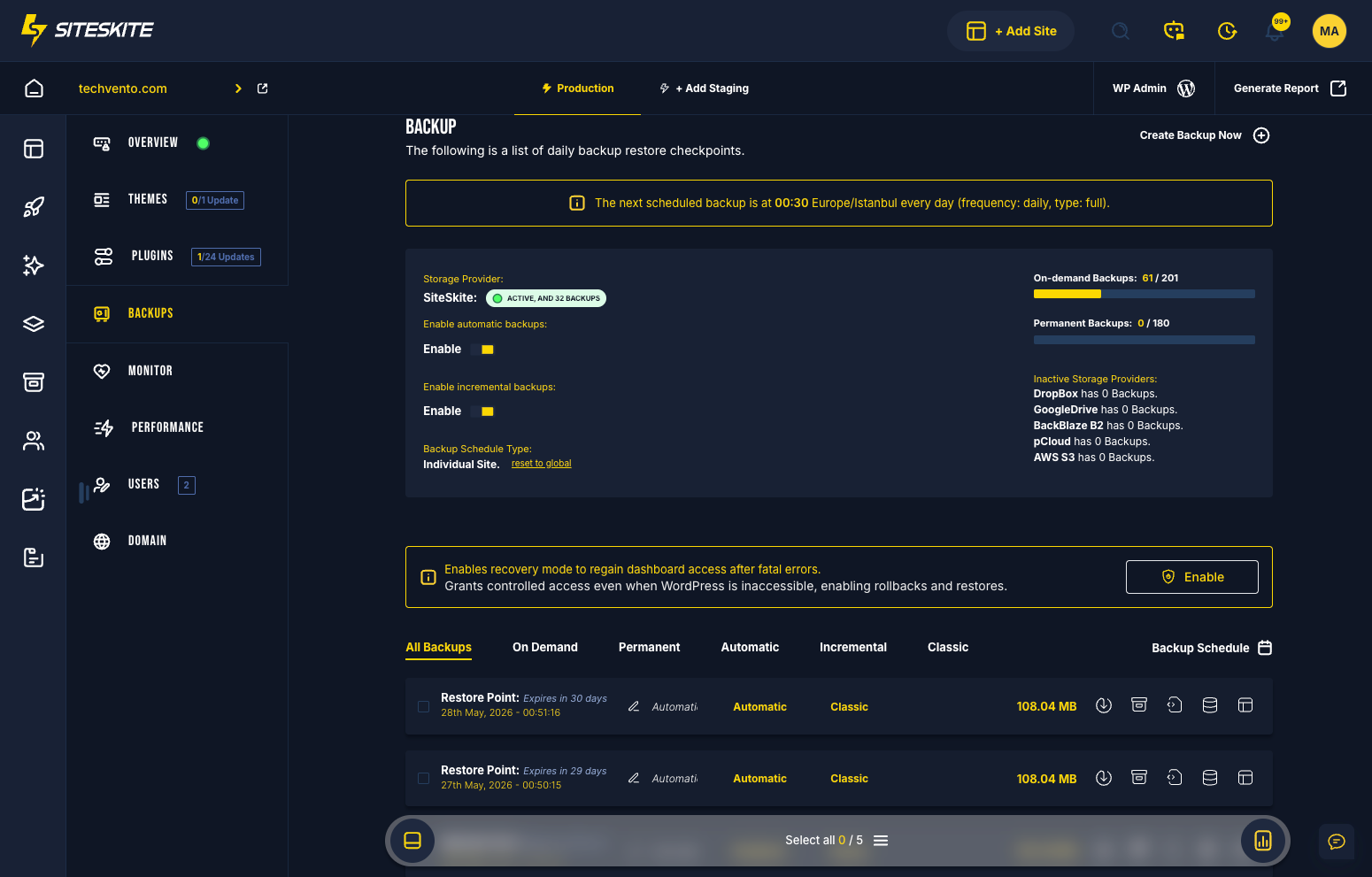
SiteSkite supports both structures for automated and on-demand backups. Incremental backups are off by default — turn the toggle on to switch scheduled backups to incremental.
Classic backup (full)
A complete backup of your entire WordPress website — files and database in one full snapshot.
Recommended for weekly or monthly full backups, and before major updates or migrations.
Pros
- Full snapshot of everything
- Reliable and simple restore
- Ideal after major updates, migrations, or redesigns
Cons
- Larger file size
- Takes more time to process
- Uses more storage
- Stressful for low-resource hosting (128MB–256MB RAM)
Incremental backup
Only backs up files that have changed since the last backup — the first run establishes a full baseline.
Recommended for daily recurring automated backups on shared or low-resource hosting.
Pros
- Much faster and lighter
- Uses minimal storage
- Perfect for daily automated schedules
- Great for shared and low-resource hosting
- Efficient long-term backup strategy
Cons
- First backup is full (initial baseline)
- Restore combines baseline plus increments
- Slightly more complex structure
Incremental backups are OFF by default in SiteSkite. Turn ON the toggle to switch all scheduled backups to incremental.
How SiteSkite applies your choice
Once you pick classic or incremental, the backup engine handles the rest on your schedule.
- Toggle between classic full and incremental backup per linked site
- Scheduled backups use the selected type automatically
- Completed runs logged in Backup History with type, size, and storage location
- Classic restore replaces site files and database from one snapshot
- Incremental restore rebuilds baseline plus change layers automatically
- Retention rules apply to both backup types equally
- Works with SiteSkite-powered storage, S3, Backblaze B2, Dropbox, Google Drive, and pCloud
When to use which type
Practical guidance for agencies, freelancers, and in-house teams managing WordPress at scale.
Daily incremental
Default choice for automated daily backups across a client portfolio — minimal storage, minimal hosting stress.
Weekly classic full
Schedule a classic full backup weekly or monthly for a clean, standalone restore point independent of increment chains.
Before major updates
Run or schedule a classic full backup before plugin, theme, or core updates — simple rollback if something breaks.
Migrations & redesigns
Use classic backups when moving hosts or launching large redesigns — one complete snapshot to restore from.
Shared hosting
Prefer incremental for recurring schedules on memory-constrained hosts; reserve classic for less frequent full captures.
Mixed strategy
Combine incremental dailies with periodic classic fulls — balance speed day-to-day with completeness when it counts.
How to switch backup type
Change between classic and incremental from any linked site in the SiteSkite portal.
Open your website
From Linked Sites, select the site and open the Backup tab.
Enable automated backups
Toggle Automated Backup ON if you want scheduled runs to use your chosen type.
Choose backup type
Use the incremental toggle — OFF for classic full backups, ON for incremental change-only backups.
Confirm storage
Select SiteSkite-powered storage or your BYO cloud provider before saving.
Save changes
Save — future scheduled backups use the selected classic or incremental structure.
Restore behavior & troubleshooting
Understand how each type restores — and what to check when backups misbehave.
Restore behavior
SiteSkite handles restore complexity for both backup types from Backup History.
- Classic — click Restore Backup; SiteSkite replaces files and recovers the database
- Incremental — SiteSkite rebuilds baseline plus increment layers automatically
- Site validation runs after restore completes
- Backup History shows type, size, date, and storage location for every run
Type-specific issues
- Classic failed — check server memory, permissions, or storage API credentials
- Incremental stopped — ensure the first full baseline completed successfully
- Incremental chain broken — local storage cleared manually or baseline missing
- Wrong type for hosting — switch daily schedules to incremental on low-RAM servers
Classic and incremental backups are included in your SiteSkite plan
Pair the right backup type with Automated Backups, Smart Engine, Safe Mode, and monitoring — one WebOps layer for every linked WordPress site.
7-day trial · No credit card required