
WordPress ops, from one CANVAS panel
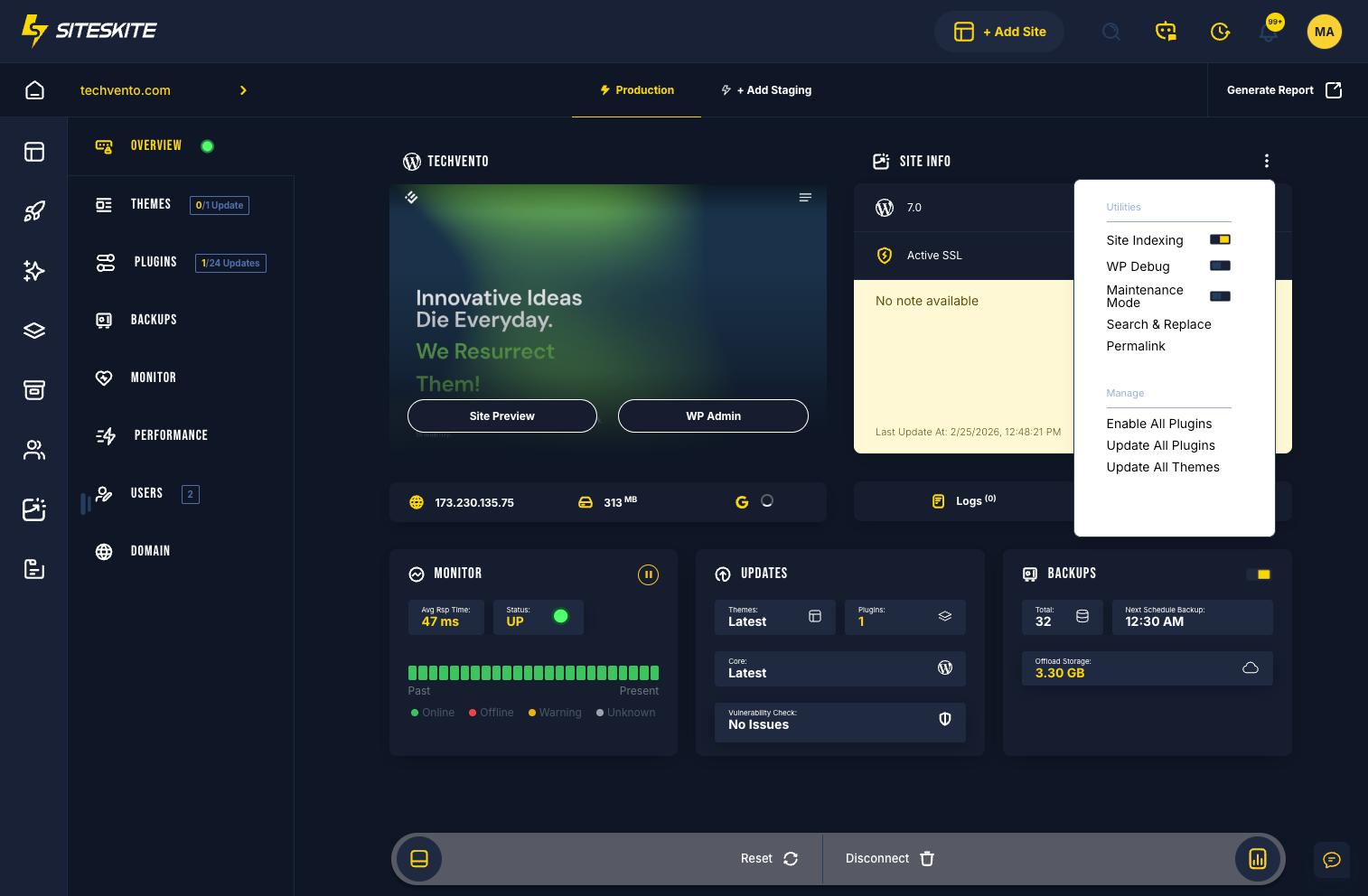
WP CANVAS is the action-first control hub for each linked site — inspect, troubleshoot, update, and manage common WordPress tasks from the SiteSkite portal without juggling server access or wp-admin tabs.
7-day trial · No credit card required
Why WP CANVAS?
Every linked site gets a compact ops panel — so developers and agencies handle technical tasks from SiteSkite instead of opening five tools for one fix.
Site-specific control hub
Open any linked site in the portal and access indexing, debug, maintenance, updates, and admin tools from one CANVAS panel.
Remote WordPress management
Toggle debug, maintenance mode, permalinks, and locale — or run bulk plugin and theme updates without SSH or hosting panel access.
Team context built in
Notes, tags, error console, and one-click admin login keep site-specific context and quick access in the same place you run fixes.
Core CANVAS capabilities
Inspect, troubleshoot, and maintain each linked WordPress site from the SiteSkite portal.
Site indexing
Searchable index of posts, pages, media, and URLs — locate content and verify discoverability from the portal.
WP Debug & error console
Toggle WP_DEBUG remotely and review PHP/JS errors in one consolidated view — trace issues without server credentials.
Maintenance mode
Enable a visitor-facing maintenance page while you update or fix the site — with optional custom messaging.
Search & replace
Controlled site-wide text or URL replacements — e.g. http→https or old domain→new domain. Always backup first.
Bulk plugin & theme updates
Update all plugins or all themes from CANVAS with progress and results — best paired with backup and maintenance mode.
Notes, tags & admin login
Internal site notes, portal tags for filtering, and secure one-click wp-admin access — all from the same panel.
Full WP CANVAS feature set
Every tool available in the per-site CANVAS panel when you open a linked site in SiteSkite.
- Site Indexing — searchable content and asset index
- WP Debug — remote WP_DEBUG toggle with log visibility
- Maintenance Mode — visitor maintenance page with custom message
- Search & Replace — controlled site-wide text/URL replacements
- Permalink Manage — view, update structure, flush rewrite rules
- Enable All Plugins — bulk-enable for diagnostics (use with caution)
- Update All Plugins — bulk plugin updates with progress
- Update All Themes — bulk theme updates including active theme
- WP Language — view or change site locale remotely
- Error Console — recent PHP/JS errors and logged issues
- Notes — internal team notes tied to the site
- Tags — organize and filter sites in the portal
- One-Click Login — secure token-based wp-admin access
- Reset Site — destructive baseline reset (admin-only, backup required)
When teams use CANVAS
Day-to-day WordPress ops that should not require hosting panel or SSH access.
Troubleshooting
Enable WP Debug, read the error console, bulk-enable plugins to isolate conflicts — then revert when fixed.
Migrations & URL fixes
Run search & replace and flush permalinks after domain or HTTPS changes without opening phpMyAdmin.
Scheduled maintenance
Turn on maintenance mode, run Update All Plugins/Themes with a backup in place, then restore normal operation.
How to use WP CANVAS
Open a linked site in SiteSkite and run WordPress tasks from the CANVAS panel.
Open SiteSkite → Sites
Log in to the portal, go to Sites, and click the linked WordPress site you want to manage.
Open WP CANVAS
Access the site dashboard and advanced configuration — the compact CANVAS panel for that site.
Run the action you need
Enable maintenance mode, toggle debug, update plugins, search & replace, manage permalinks, or add notes.
Review results & log context
Check the error console or notifications, disable debug on production when done, and note what changed in site Notes.
Safety & best practices
CANVAS includes powerful actions — treat Reset Site, Search & Replace, and bulk updates with appropriate safeguards.
Before high-risk actions
Backup first, use maintenance mode during major changes, and restrict destructive tools to administrators.
- Always backup before Reset Site, Search & Replace, or bulk Update All
- Use Maintenance Mode during major updates to avoid user disruption
- Restrict Reset, bulk updates, and Search & Replace to Administrator role
- Prefer testing updates on staging before production
Operational habits
- Disable WP Debug on production when troubleshooting is complete
- Use Notes to log what changed and why for your team
- Apply Tags for client, priority, or project filtering in the portal
- Pair CANVAS bulk updates with Smart Engine and backups
WP CANVAS is included in your SiteSkite plan
Manage each linked site from one panel — alongside monitoring, backups, staging, Smart Engine, and portfolio WebOps.
7-day trial · No credit card required