
Connect WordPress once, manage everything remotely
Linked Sites is the foundation of SiteSkite — connect your WordPress websites with the SiteSkite Link Plugin and unlock backups, monitoring, updates, reports, templates, and portfolio control from one dashboard.
7-day trial · No credit card required
Why link your sites?
Without a linked connection, SiteSkite cannot manage your WordPress infrastructure remotely. Link once — operate backups, monitoring, updates, and reporting from a single workspace.
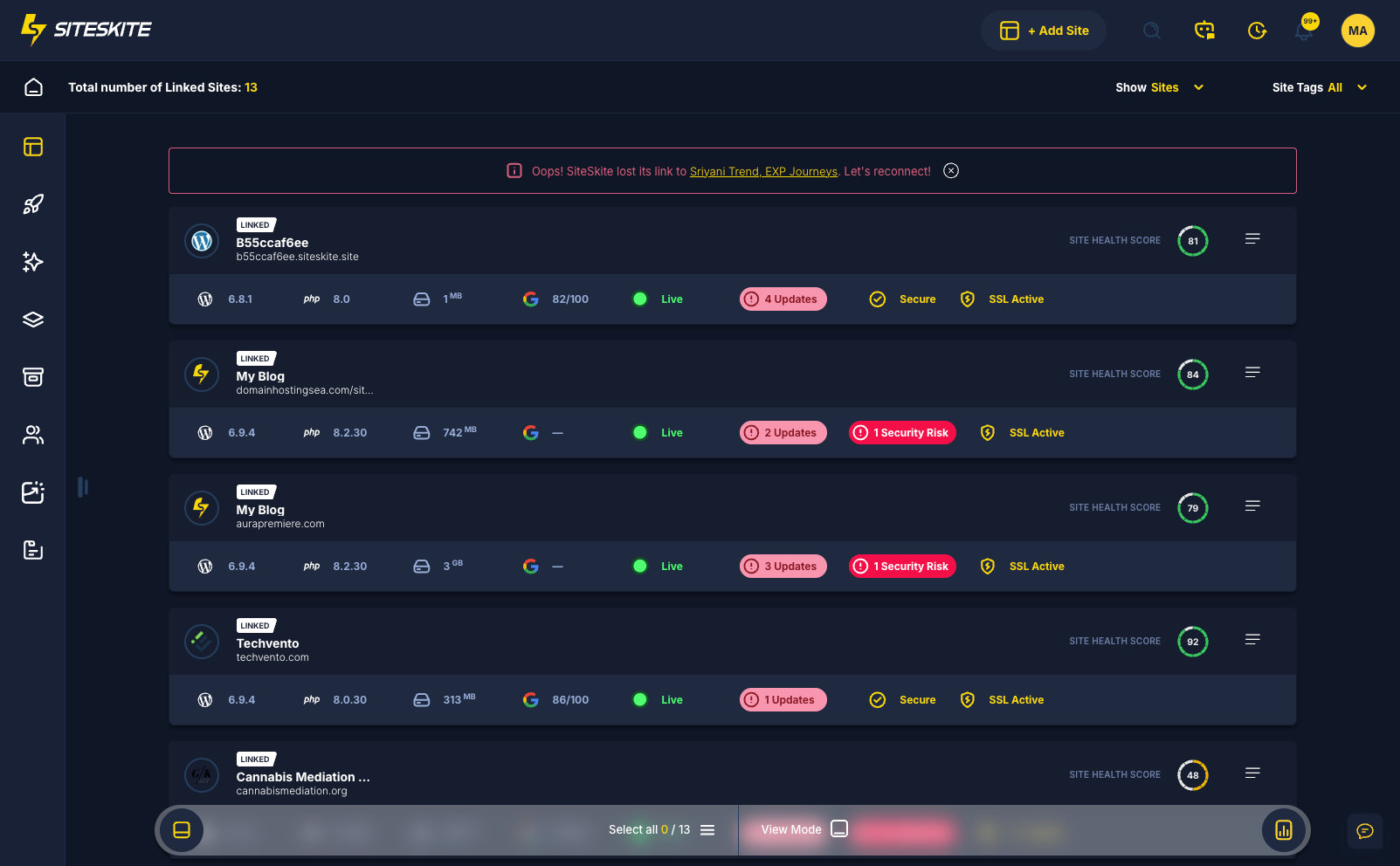
One dashboard for all sites
Stop juggling logins and browser tabs. Manage unlimited WordPress sites in a centralized SiteSkite interface.
Full WebOps unlocked
Backups, uptime monitoring, plugin and theme management, marketplace templates, PDF reports, and cloud storage — all remote.
Secure by design
The SiteSkite Link Plugin authorizes communication between your site and workspace using your API key — no sharing main credentials.
What linking unlocks
Once connected, your site becomes fully manageable from the SiteSkite portal.
Backups & restore
Run classic or incremental backups, store on S3, pCloud, Backblaze, Dropbox, Google Drive, and restore with one click.
Uptime monitoring
Automatic uptime checks, downtime alerts, incident logs, and monitoring data in automated client reports.
WordPress management
Update, rollback, auto-update, or exclude plugins and themes remotely — including bulk actions and Smart Updates.
Reports & insights
Generate professional PDF maintenance reports and schedule recurring delivery for clients and teams.
Marketplace templates
Import SiteSkite marketplace templates directly into a linked site — full site overwrite when you need it.
Cloud storage
Connect Amazon S3, Backblaze B2, Dropbox, Google Drive, pCloud, and more for backup storage on your terms.
Linked site status at a glance
Each site in your Linked Sites dashboard shows its current connection state.
Connected
Site is verified and fully operational with SiteSkite.
Disconnected
Plugin removed, disabled, or API key invalid — reconnect to restore remote management.
Error
SiteSkite cannot reach the server — maintenance, firewall rules, or downtime may be blocking communication.
Pending
Awaiting connection after generating an API key in the portal.
How to link a site
Three steps — install the plugin, copy your API key, and connect from WordPress admin.
Install SiteSkite Link
In WordPress Admin → Plugins → Add New, search SiteSkite, install, and activate. Keep the plugin active for remote communication.
Copy your API key
In SiteSkite → Linked Sites → Add New Site, copy the generated API key for this website.
Connect in WordPress
Go to WordPress Admin → Settings → SiteSkite, paste the key, click Connect to SiteSkite — your site appears in Linked Sites.
Stay connected and healthy
Most connection issues are plugin, key, or hosting related — quick checks usually restore full remote management.
Troubleshooting tips
If a site shows Disconnected or Error, work through these checks before opening a support ticket.
- Ensure SiteSkite Link Plugin is installed and active
- Verify the API key matches the site in Linked Sites
- Temporarily disable firewall or security plugins blocking REST requests
- Exclude wp-json/siteskite/v1 from aggressive caching if connection is slow
Ideal when you
- Manage multiple WordPress sites for clients or your own portfolio
- Need remote backups and monitoring without logging into each site
- Want bulk updates, reports, and templates from one operations layer
- Are building agency WebOps on connected production or staging sites
Linked Sites are included in your SiteSkite plan
Connect your first site in minutes — then layer on Smart Engine, WP Essentials, Sandbox, Blueprints, and the rest of your WebOps stack.
7-day trial · No credit card required