
Product update
Talk to your live WordPress sites — then publish and monitor without leaving SiteSkite
Edit live pages through conversation, ship AI builds to any connected host, and tune Monitor so alerts stay useful — one WebOps loop for the work you already do every week.
6 min read
Why this release
Most WordPress work still dies in the gap between “we should change this” and “it’s live.” Chat lives in one tab. The editor in another. Publish somewhere else. Monitor catches the fallout after the client already saw it.
This release closes that loop inside SiteSkite: describe the change on a live site, apply it with context, publish when you’re ready, and keep alerts tuned so they stay useful at portfolio scale.
Agencies and freelancers asked for one place to edit, test, publish, and watch sites — without rebuilding the same workflow across a dozen tools. Version 2.1.5 ships the pieces that make that possible day to day.
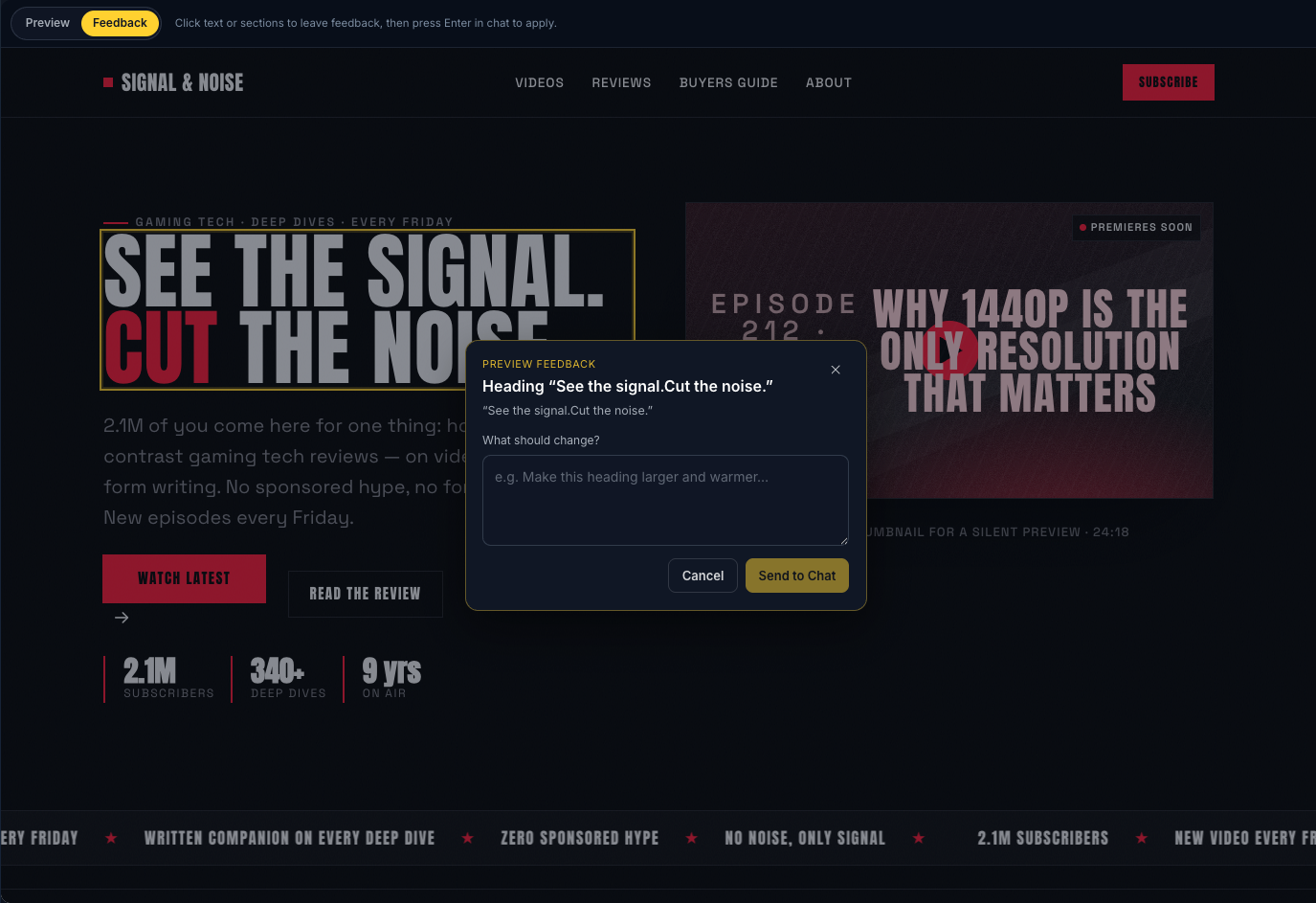
Click a section. Describe the change. Send to Chat.
Work on live WordPress through conversation — pages, plugins, Elementor, WooCommerce, and forms — without hunting settings across wp-admin.
Click any text or section, describe the change in plain language, and send feedback to Chat with page context already attached.
Your AI follows your playbooks — not generic defaults
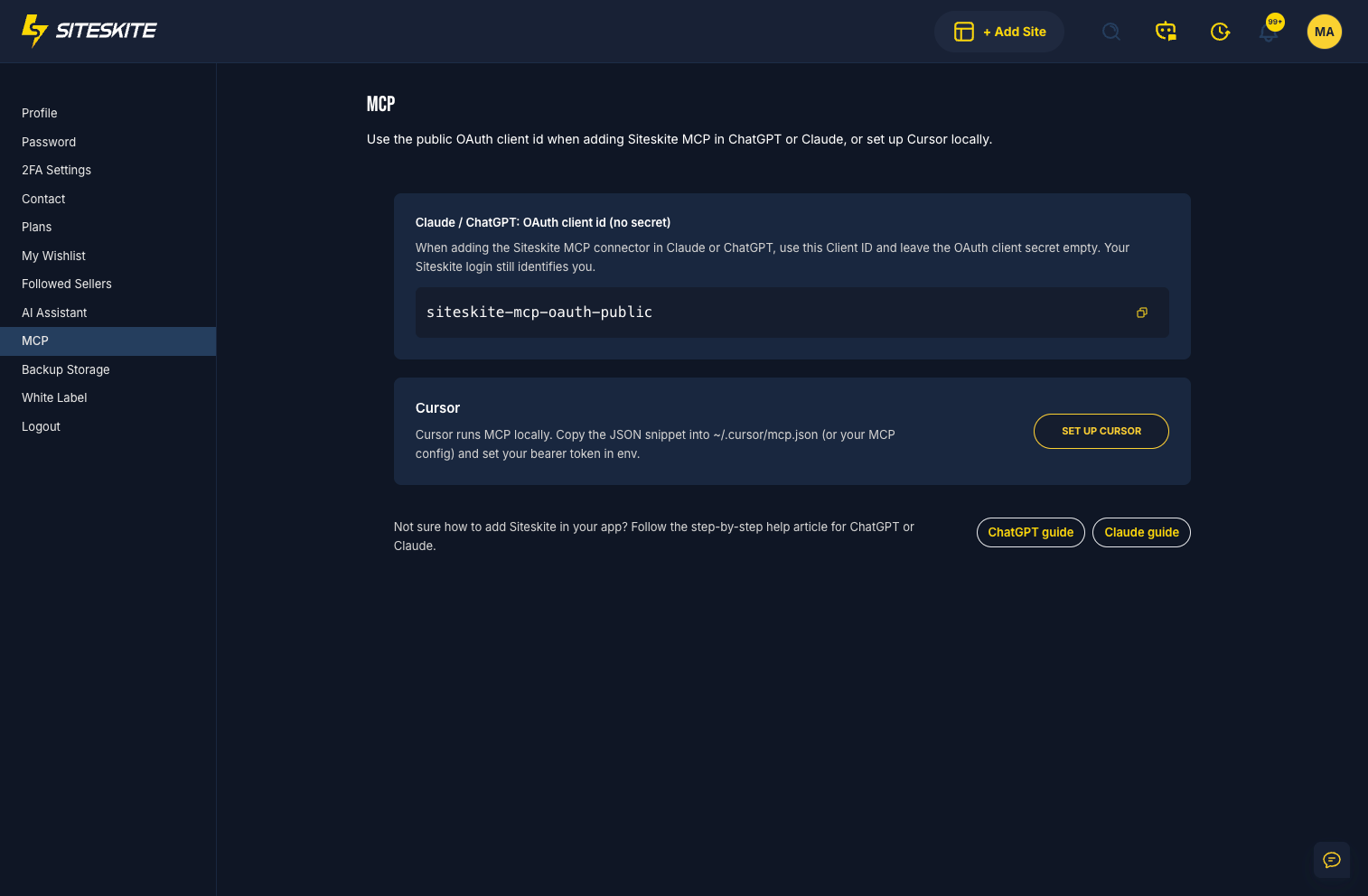
SiteSkite MCP connects Claude, ChatGPT, or Cursor to real WordPress power on-site and in the cloud portal. Hybrid MCP keeps portal tools and on-site abilities in one connector.
Upload custom MCP Skills through SiteSkite Link, browse platform skills for live-site jobs, and see each skill’s source — Built-in, Platform, Uploaded, or Custom.
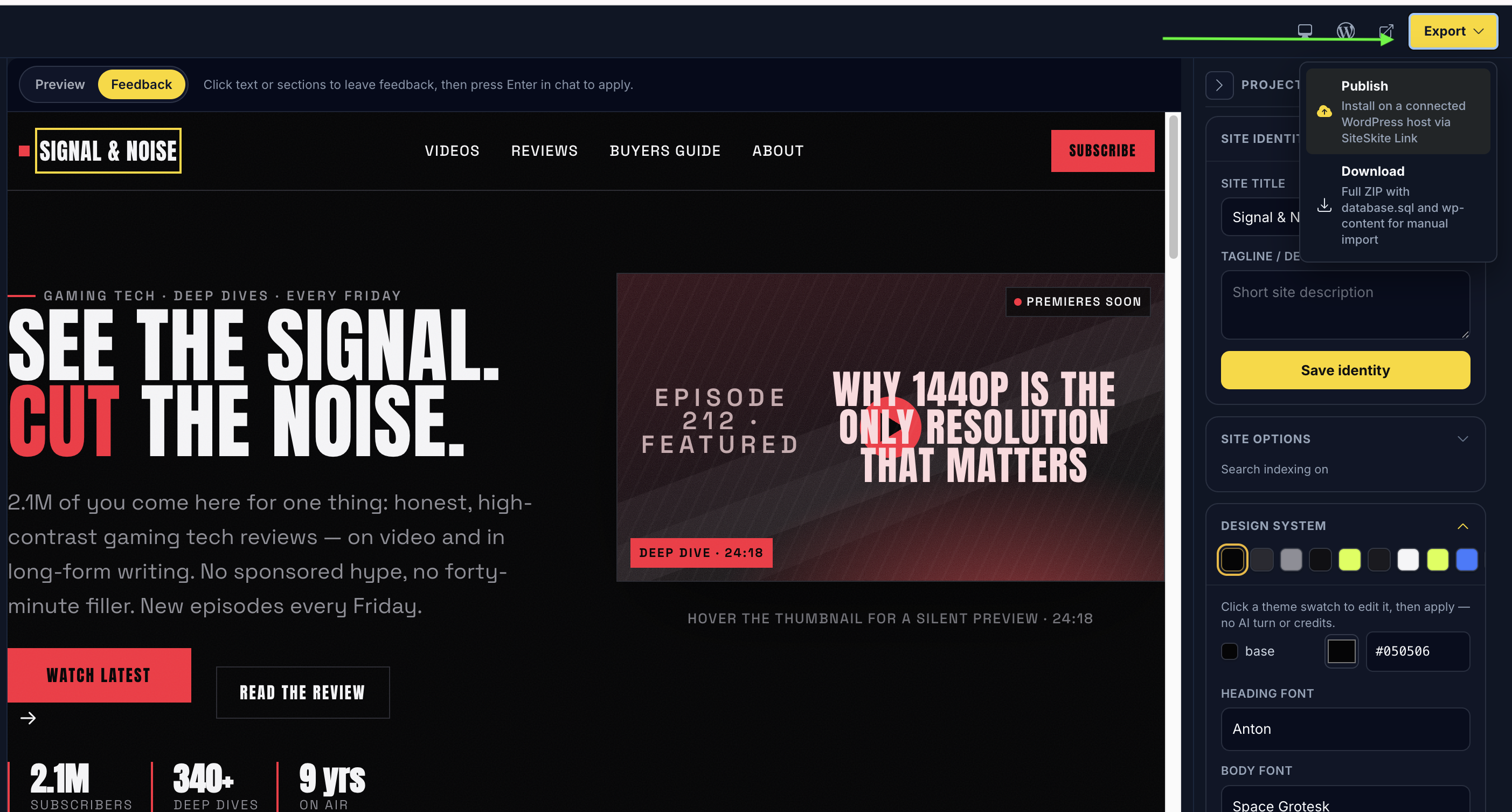
Ship the AI build to your host — or hand off a ZIP
Build in AI Site Studio, then move the result where it belongs. Publish from AI preview to any connected WordPress site in one click — your host, your client’s host, or another server.
Prefer manual control? Download a complete portable ZIP (database.sql + wp-content) for import, backup, or client handoff.
Alerts that stay useful at portfolio scale
Uptime noise kills trust faster than silence. Control how often Monitor alerts, use a cleaner detail view, and open Recovery Mode on the front end when a site is down.
Configure security, site-change, Slack, and email recipients in one place — so updates stay useful instead of becoming noise.
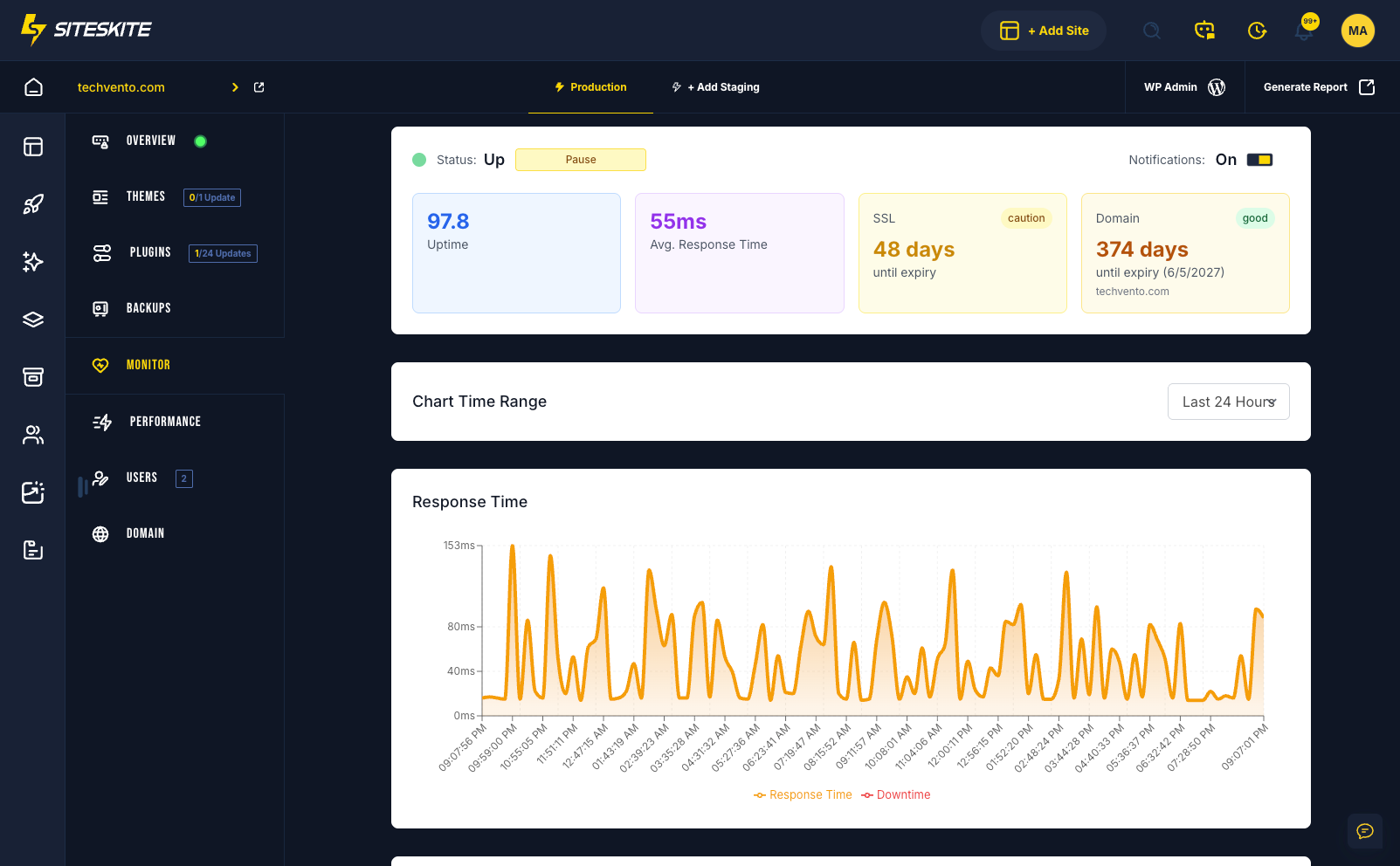
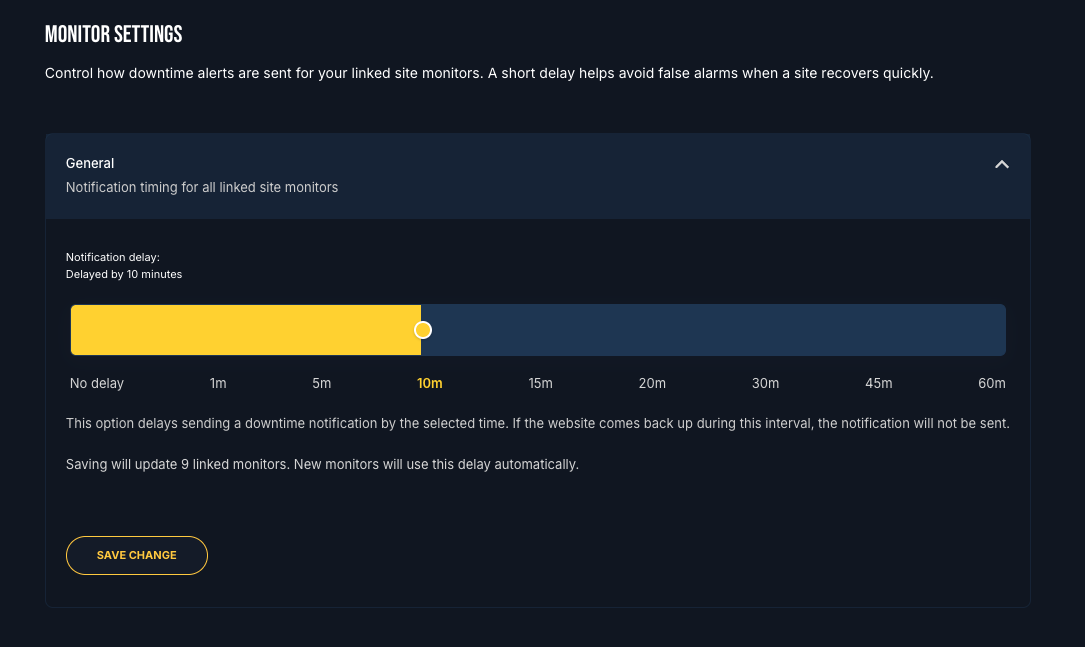
Tell Monitor how often to notify — not every flicker
Global Monitor Settings let you set downtime notification delay so teams aren’t paged for every blip.
Pair it with the cleaner Monitor detail view so the people who get alerts can act fast when something is actually wrong.
Try it now
If you already run SiteSkite, open a linked site and try Edit with AI on a draft change, then check Monitor alert settings for your portfolio. New here? Start with MCP on one site free, or walk Studio from prompt to publish on the product pages below.
Explore SiteSkite MCPMore from SiteSkite
Recent launches and platform updates worth reading next.