
Product update
Retire the plugins you installed for one small job — Site controls runs them now
Security switches, designed maintenance pages, one-click cache clearing, analytics, header and footer code, and database cleanup now sit in one panel on every connected site. Staging starts beside production in one click.
7 min read
Why this release
Count the plugins on a client site that each do one small thing. One adds the Analytics tag. One shows a maintenance page. One hides the WordPress version. One clears the cache. One deletes old revisions. Each one is another update to approve, another settings page to learn, and another vendor in the security report.
Every one of those jobs now has a switch in SiteSkite. Open a connected site and press Site controls. Security, settings, and the tools around them sit in one panel, and the SiteSkite plugin you already run does the work on the site.
The same release puts staging beside production, adds a site switcher that keeps WP Admin one click away, and makes the whole portal fit the phone in your pocket.
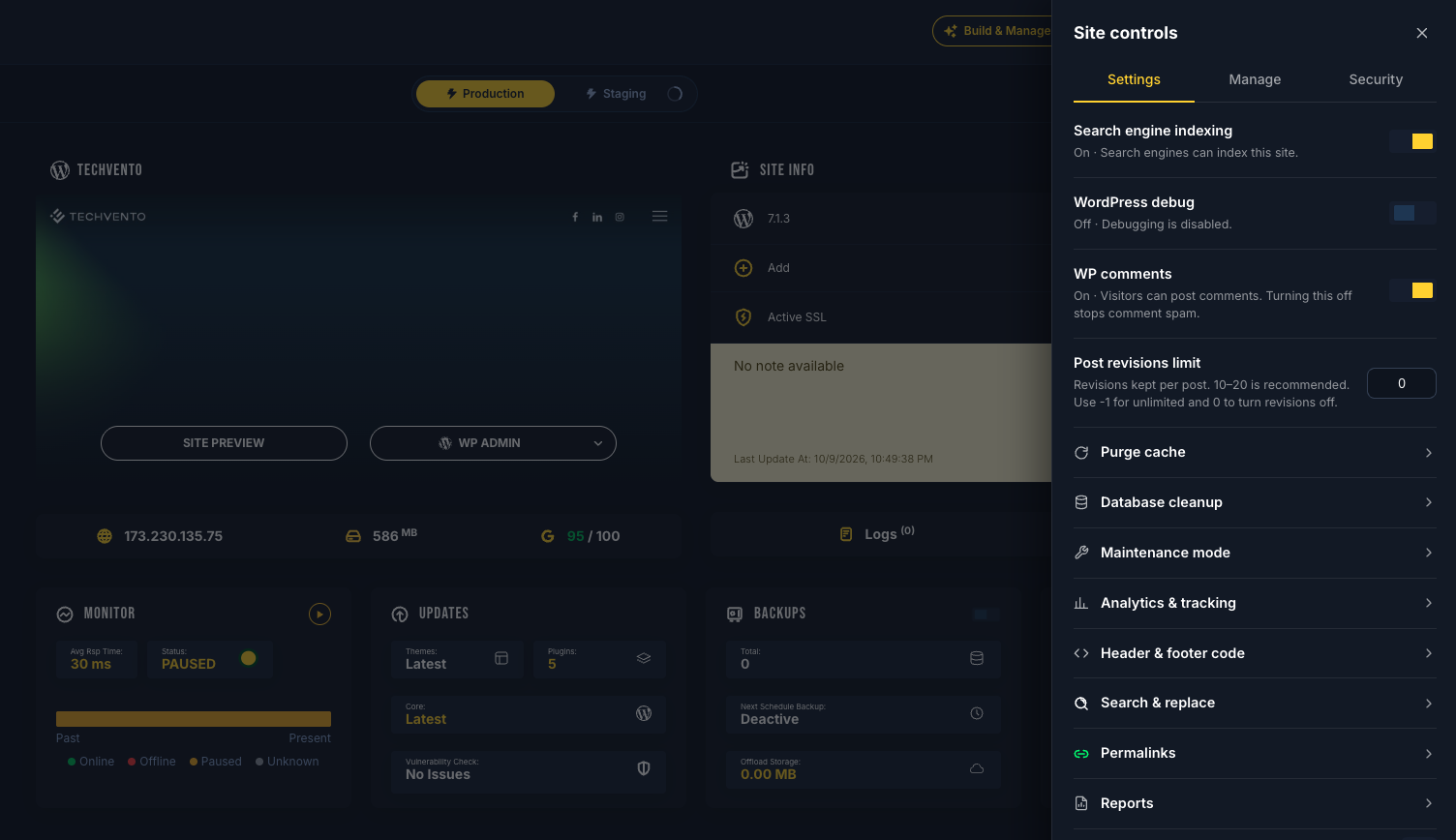
Every small job, one panel away
Search engine indexing, debug mode, comments, and the revisions limit switch right in the list. Purge cache, Database cleanup, Maintenance mode, Analytics & tracking, Header & footer code, Search & replace, Permalinks, and Reports open one click below.
Settings, Manage, and Security sit in three tabs at the top. The site stays in view behind the panel, so you change a setting and see the site it belongs to.
Close the doors bots try first
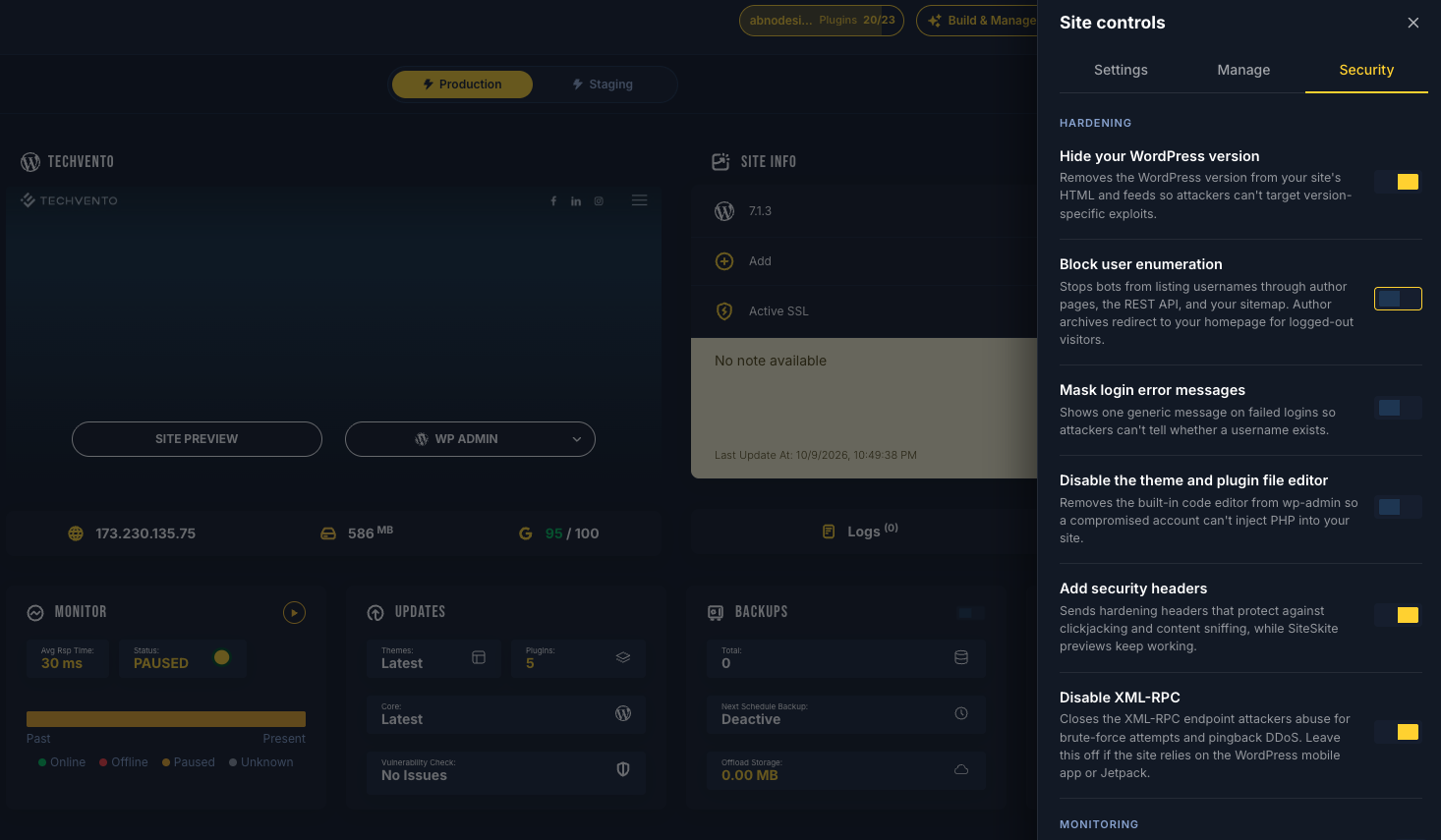
Most attacks on WordPress are automated. They read the version number, collect usernames, guess passwords, and knock on XML-RPC. Site controls → Security gives you a switch for each of those doors: hide the WordPress version, block user enumeration, mask login errors, disable the file editor, add security headers, and disable XML-RPC.
Each switch starts off and explains what it protects. Turn one on and it applies straight away. Turn it off and the site goes back to how it was. Sites that rely on Jetpack or the WordPress mobile app keep XML-RPC on.
Make the pause look planned
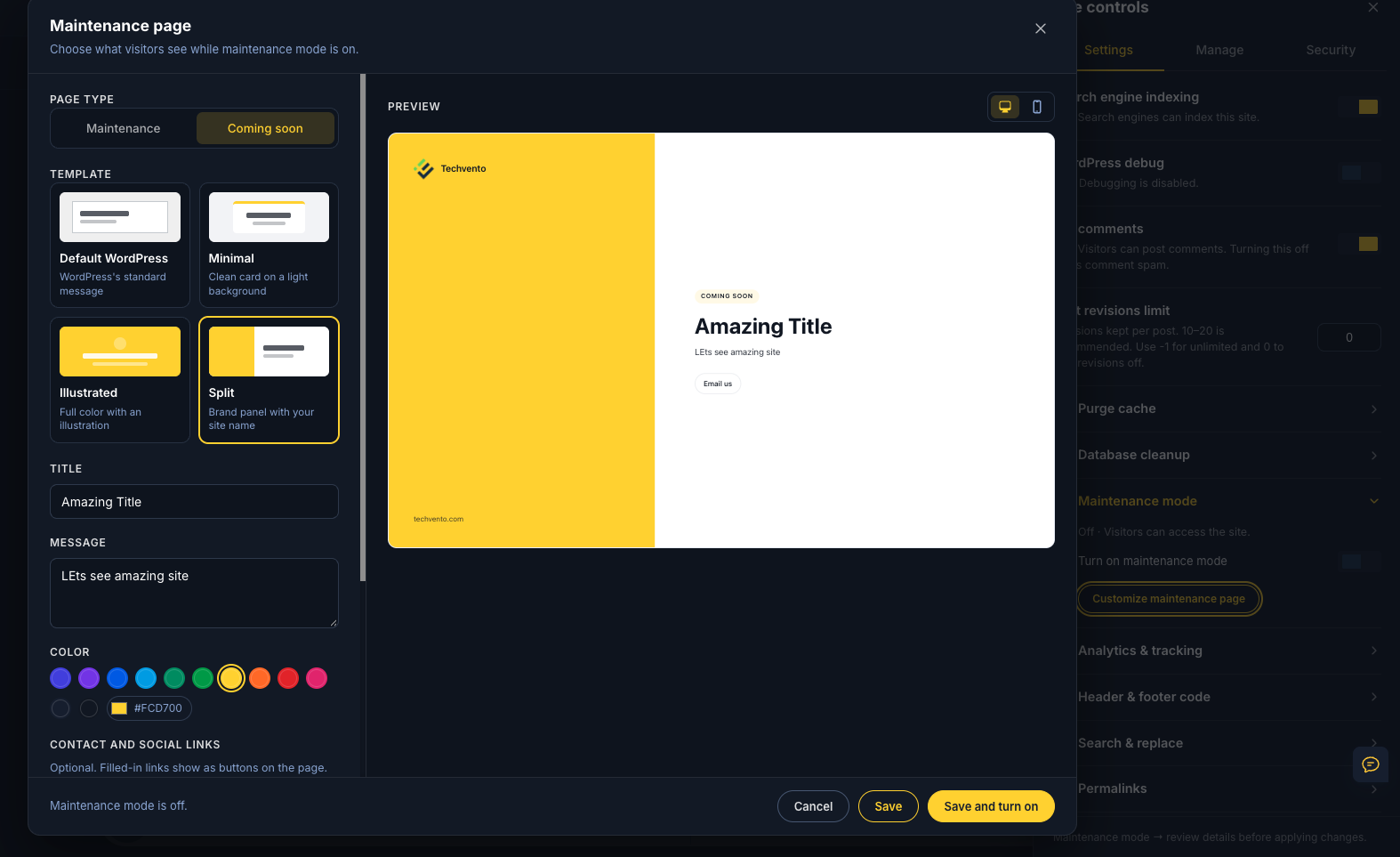
A site under maintenance still has visitors. The plain WordPress notice reads like something broke. Pick Minimal, Illustrated, or Split, add your title, message, brand color, contact email, and social links, and watch the live preview on desktop and mobile.
Building a site that hasn’t launched yet? Switch the page type to Coming soon, so early visitors meet a launch page. Save it for later, or save and turn it on in the same click.
Clear every cache with one click
The client says the change isn’t showing. The page cache cleared, the server cache held on, and Redis still serves the old version.
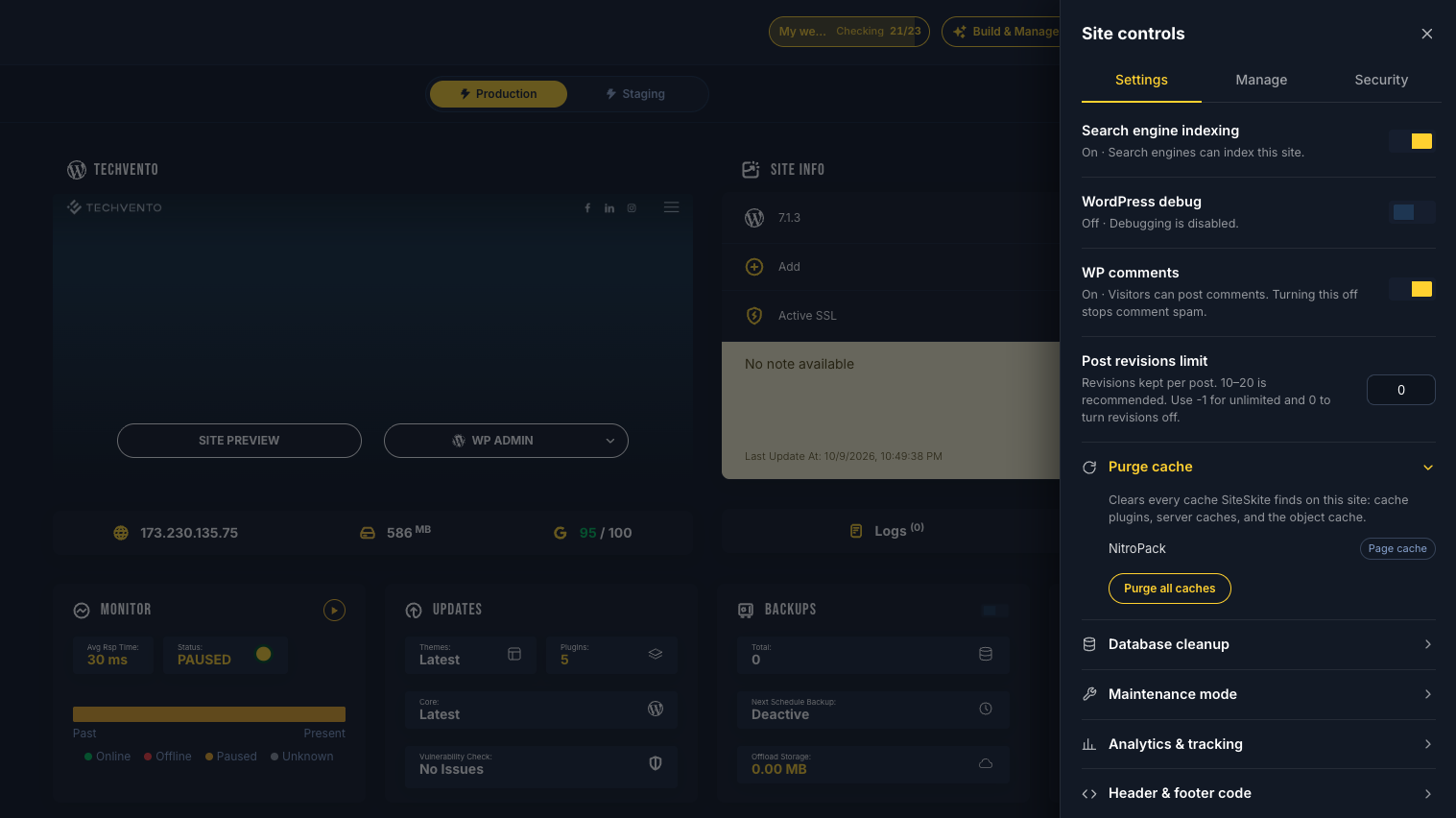
Purge cache lists the caching tools it finds on the site — WP Rocket, LiteSpeed Cache, NitroPack, W3 Total Cache, the host’s server cache, or Redis. Press Purge all caches, and SiteSkite clears each one and tells you what it cleared.
Add tracking by pasting an ID
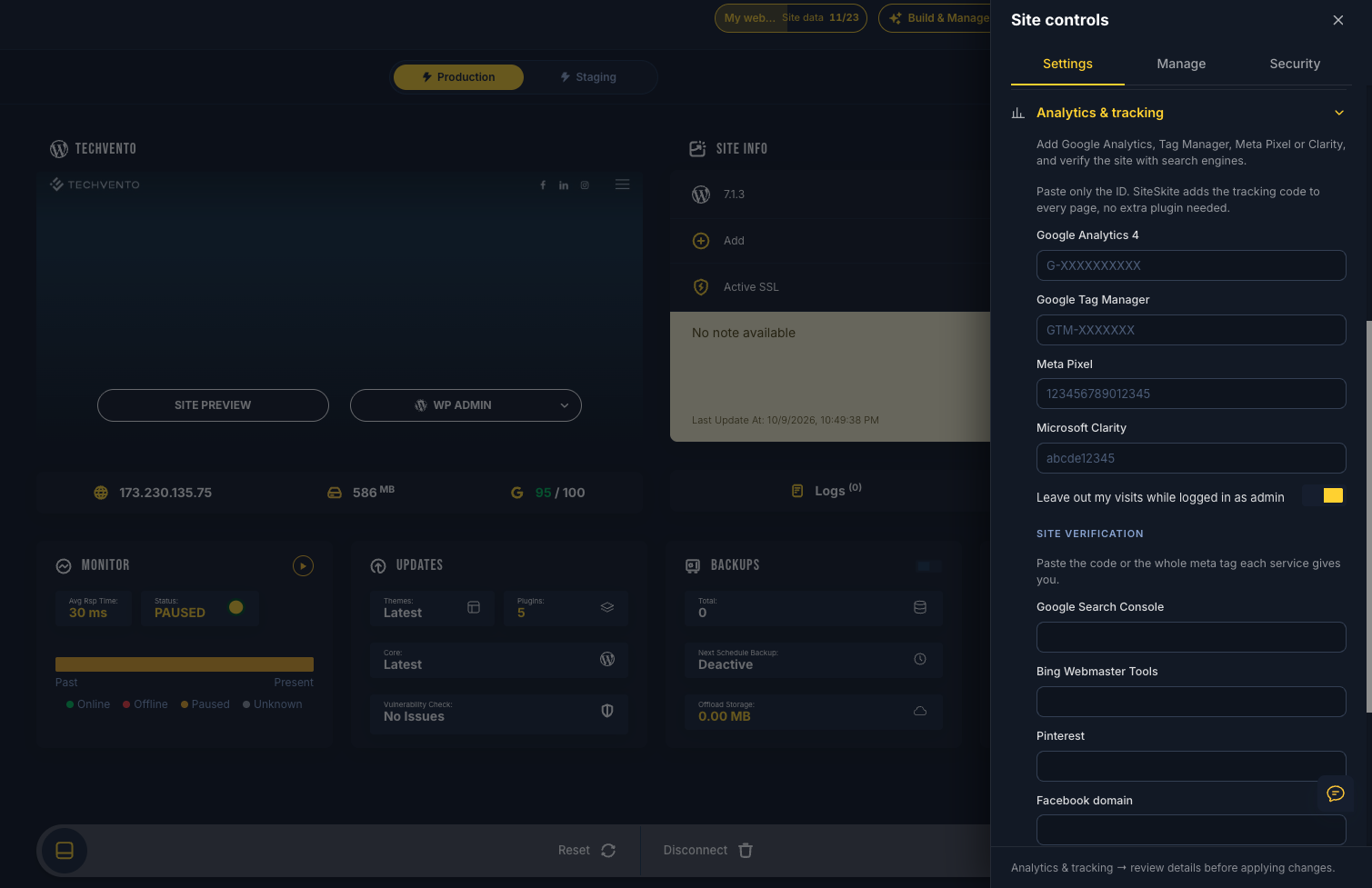
Paste a Google Analytics 4, Google Tag Manager, Meta Pixel, or Microsoft Clarity ID. SiteSkite checks the format and adds the right tag to every page. Leave out your own visits while logged in as admin, and the client’s numbers stay clean.
When another plugin on the site already adds tracking, SiteSkite points it out, so each visit is counted once. Paste the verification code or the whole meta tag for Google Search Console, Bing, Pinterest, and Facebook in the same place.
Add header and footer code, with a way back
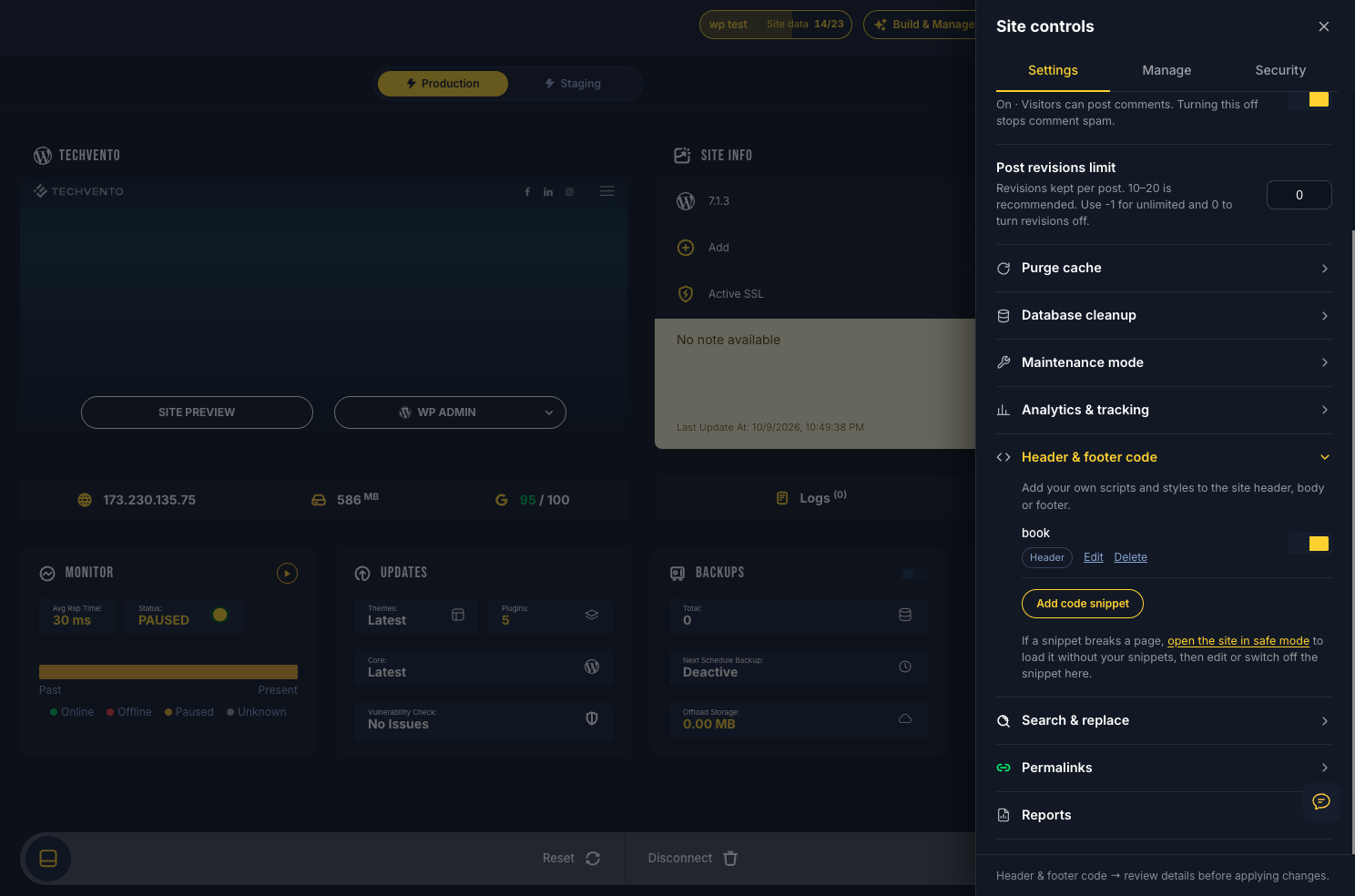
Chat widgets, ad scripts, heatmaps, and cookie banners all ask for code in the header or footer. Add up to 20 named snippets, choose header, body, or footer for each, and switch any of them on or off while keeping the code saved.
If a snippet breaks a page, open the site in safe mode. The page loads without your snippets, and you edit or switch off the one at fault from the same panel.
Keep the database lean
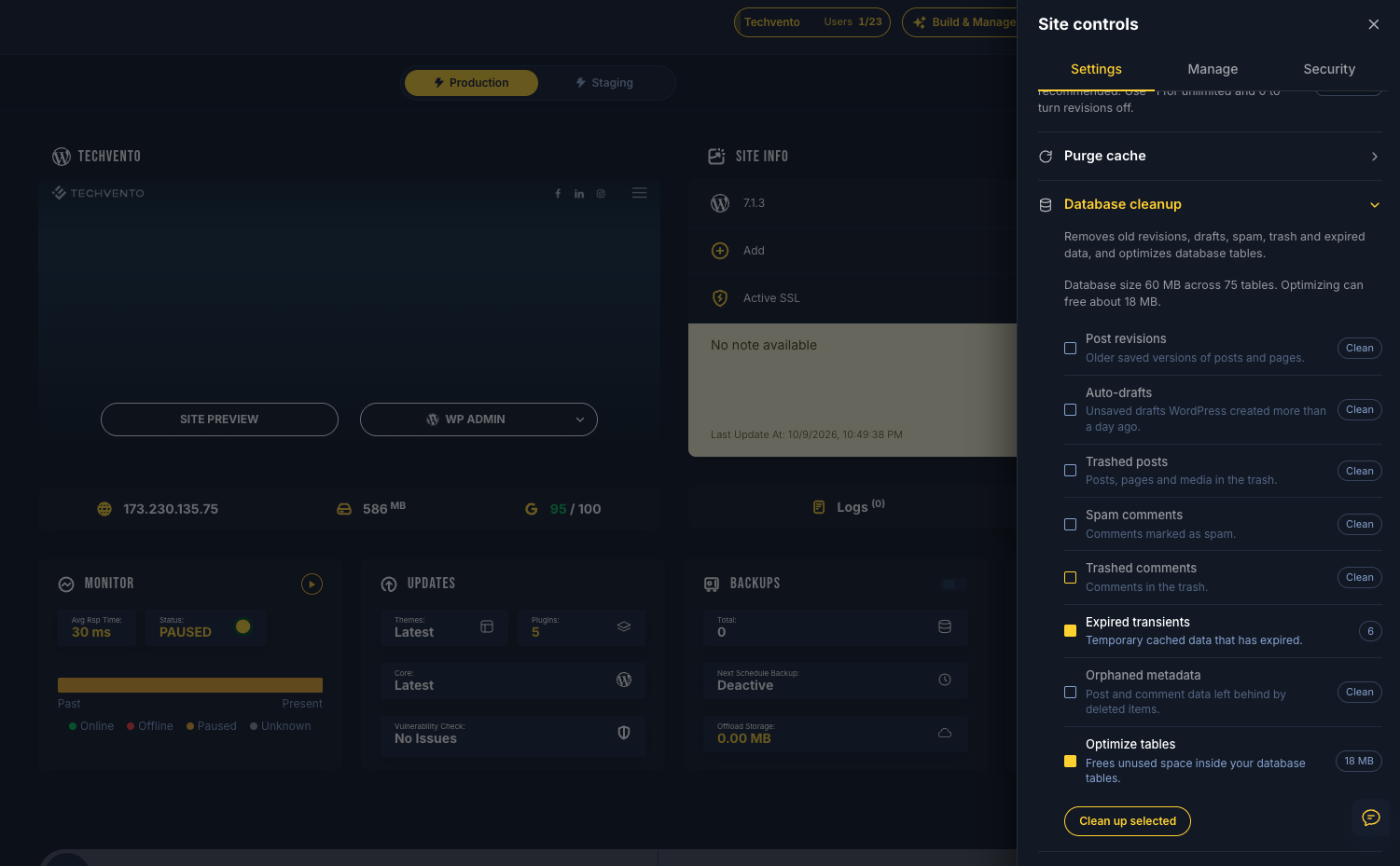
Every save leaves a revision. Every deleted post leaves data behind. Database cleanup shows the database size, counts the old revisions, unsaved drafts, trash, spam comments, expired temporary data, and leftovers, and tells you how much space optimizing frees. Pick what to clean, confirm, and optimize the tables in the same run.
Then choose how many revisions WordPress keeps for each post and page, so the pile stays small. On a site that has no use for comments, turn them off everywhere at once. Existing comments stay saved in WordPress.
Put staging beside production
Every connected site opens on Production. Press + Add Staging, choose SiteSkite, and a staging site starts on the instant sandbox with the SiteSkite plugin installed and linked to the same project. Restore a production backup onto it, or skip and start testing.
Production and Staging switch from one pill at the top of the site. A countdown ring shows how long the staging sandbox has left, and it stays visible from the Production tab. The plugins that keep the sandbox running stay protected from an accidental deactivation.
Move between sites and keep your place
- The site switcher shows each site’s status dot, with WP Admin and the site preview one click away in the list.
- Use the Add row in Site Info to add a theme or plugin from the WordPress repository, an upload, or a URL, or to add a user by role.
- Sites and Projects switch from one pill on the dashboard, with the count inside each tab.
- Create a client report from Site controls → Settings.
Show what the visitor saw while the page loaded
Performance now shows the PageSpeed filmstrip — about ten frames of the page as it loads — inside a phone or browser frame that matches the device you picked. The first screen a visitor sees is right there to point at on the client call.
Run it from your phone
The portal fits small screens. Backup cards, Monitor, site details, and the add-site wizard stack to the width you have, navigation sits within reach of your thumb, and every page fits the screen. Background sync keeps a steady schedule, so adding a site leaves the rest of the account untouched.
How to update
- Update the SiteSkite plugin to 2.2.1 — from Plugins in wp-admin, or from the site’s Plugins tab in SiteSkite.
- Open the site in SiteSkite and press Site controls.
- Turn on what the site needs. Every setting starts off, so the site changes only when you choose.
If a site still runs an older plugin, Site controls tells you to update it before the new settings open.
Every plugin you retire is one less update to approve, one less login to secure, and one less vendor to explain.
Try it on one site
Update one site to SiteSkite 2.2.1, open Site controls, and turn on the security switches. Paste your Analytics ID, clear the cache, and count how many plugins that replaces.
Explore Linked SitesMore from SiteSkite
Recent launches and platform updates worth reading next.